Everyday work
Inbox: handovers, take over and hand back
Each customer has one conversation. Calls with Ava and texts with Max appear together, in order, so anyone can pick up where the AI left off. When Ava or Max needs a person, the conversation lands in Needs you.
Steps
-
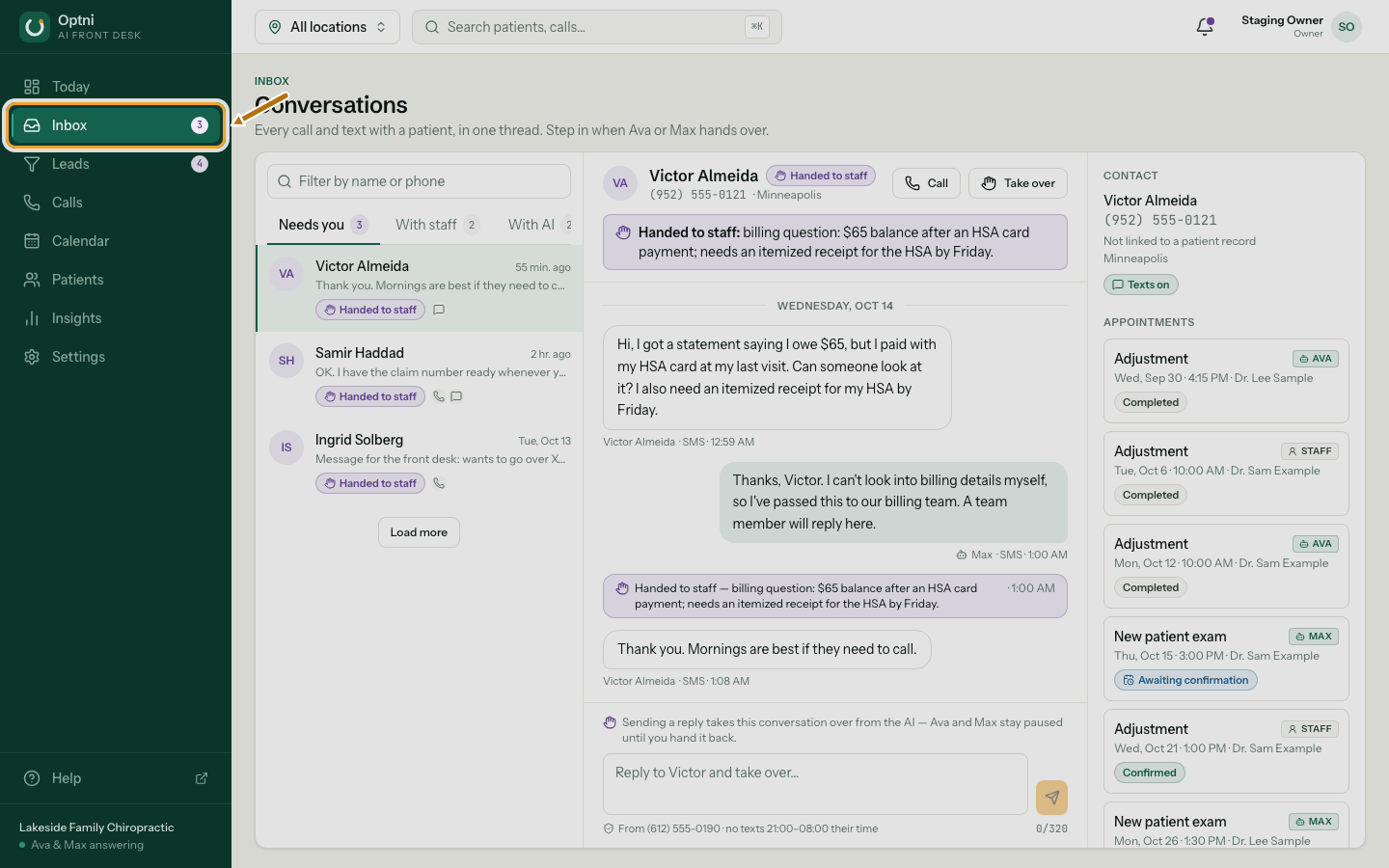
Step 1: Select Inbox in the sidebar.
The number on Inbox is how many conversations need you.
-
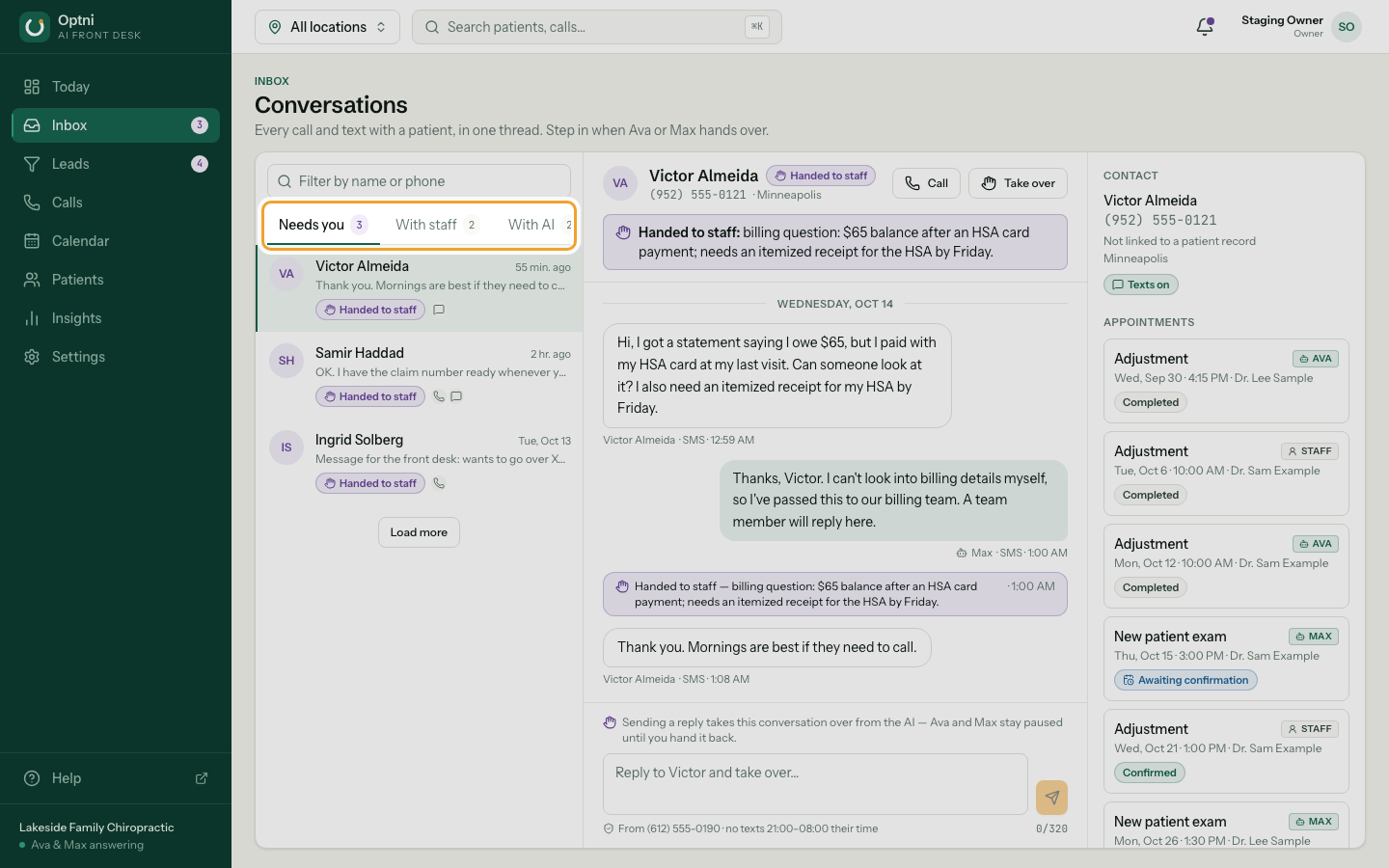
Step 2: Pick a tab: Needs you, With staff, With AI or All.
Needs you holds handovers. With staff is what a person is handling. With AI is what Ava and Max are handling.
-
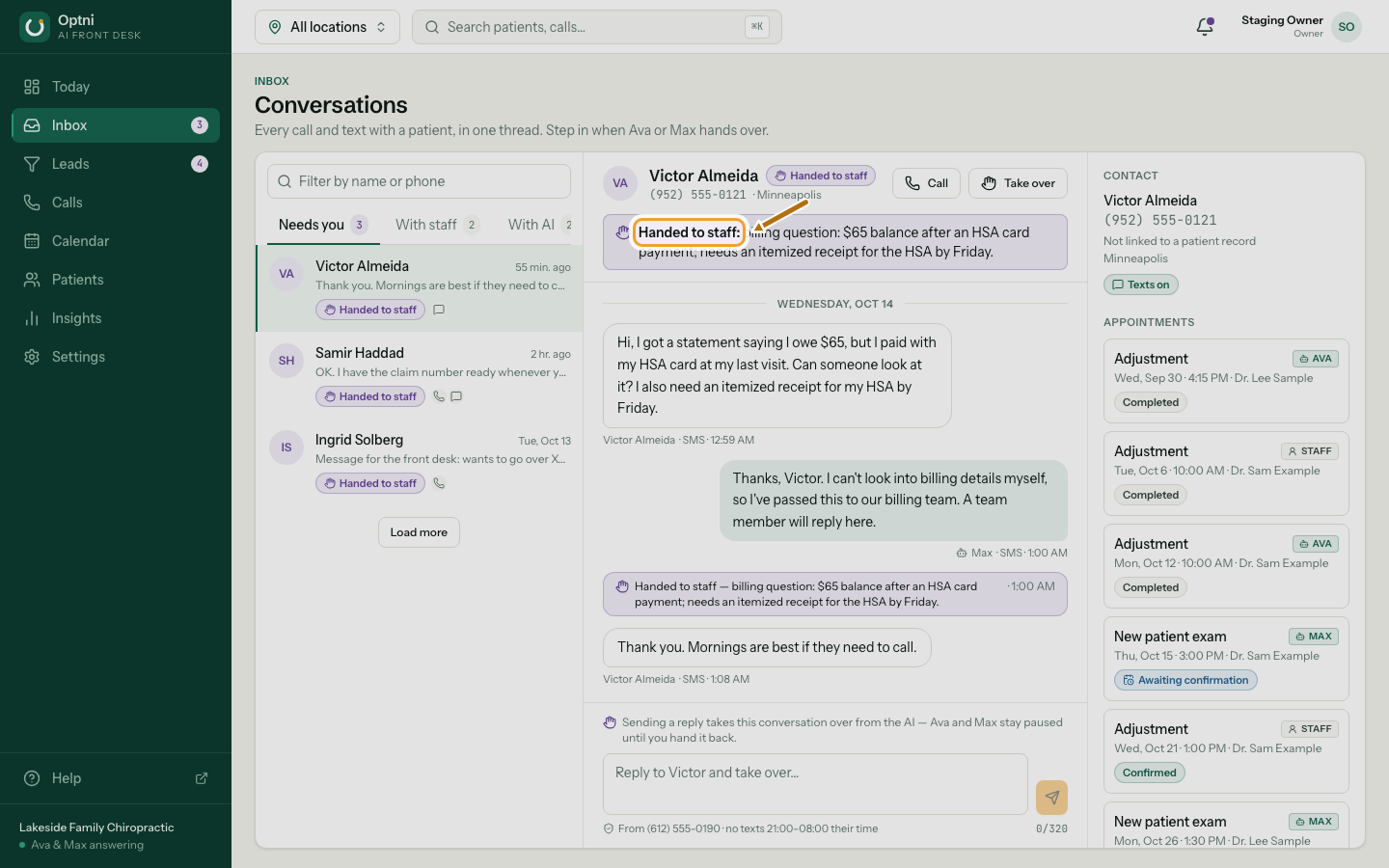
Step 3: Open a conversation and read the handover note.
The purple note says what the customer needs. Calls show as a block of turns; texts show as bubbles.
-
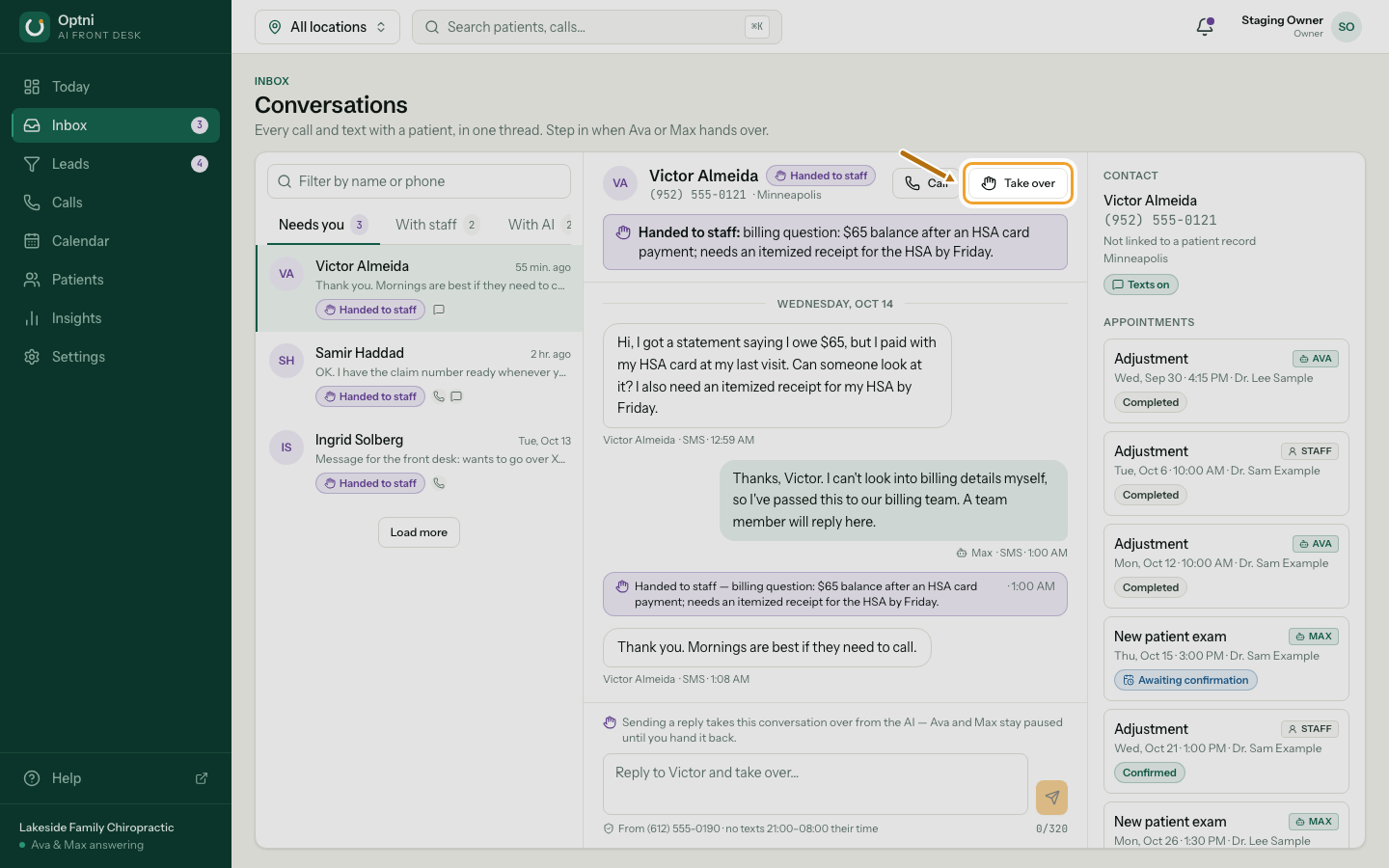
Step 4: Select Take over to handle it yourself.
Ava and Max pause on this customer — calls and texts — until you hand it back. Sending a reply also takes over.
-
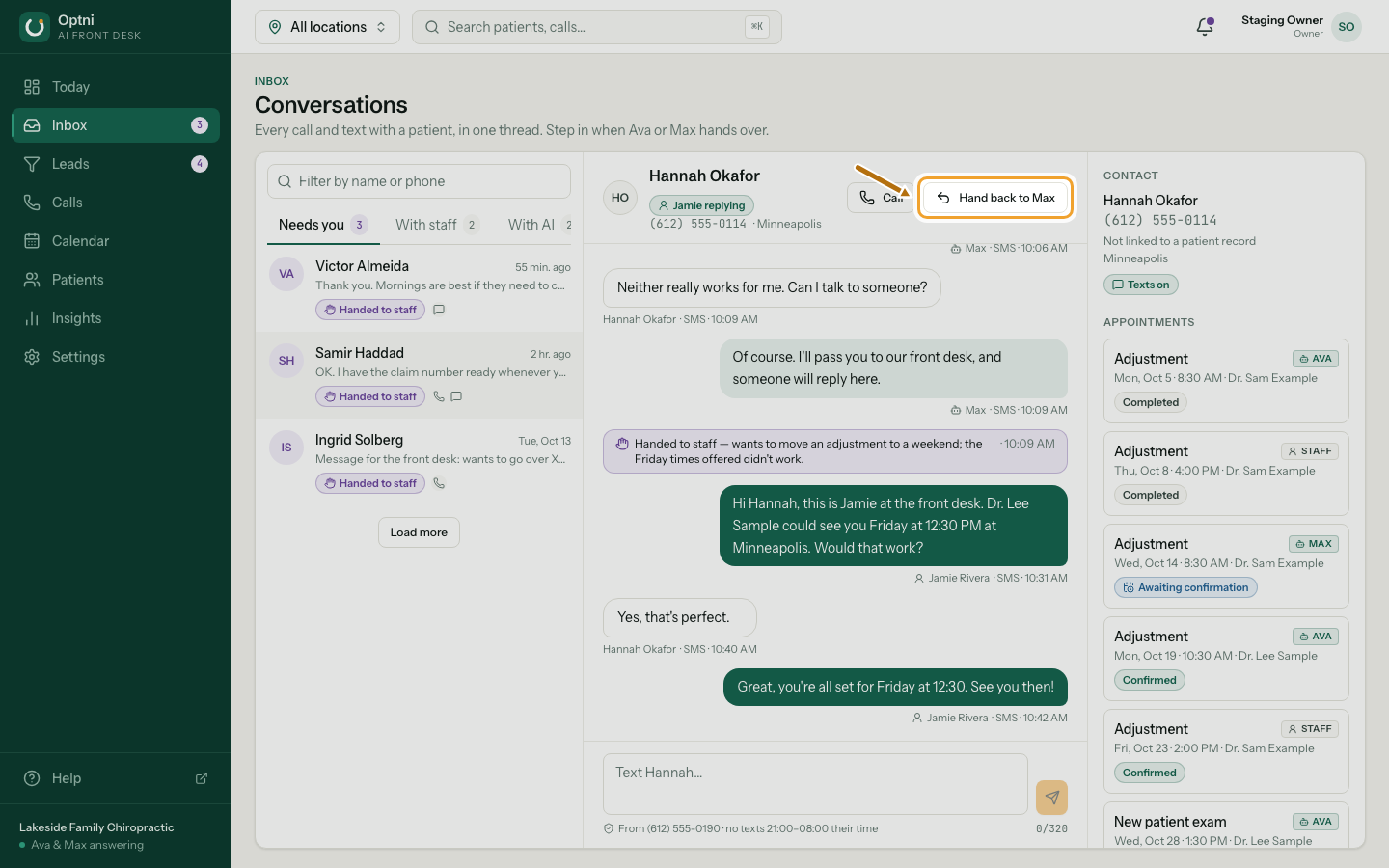
Step 5: When you're done, select Hand back to Max.
The AI answers this customer again from the next call or text.
-
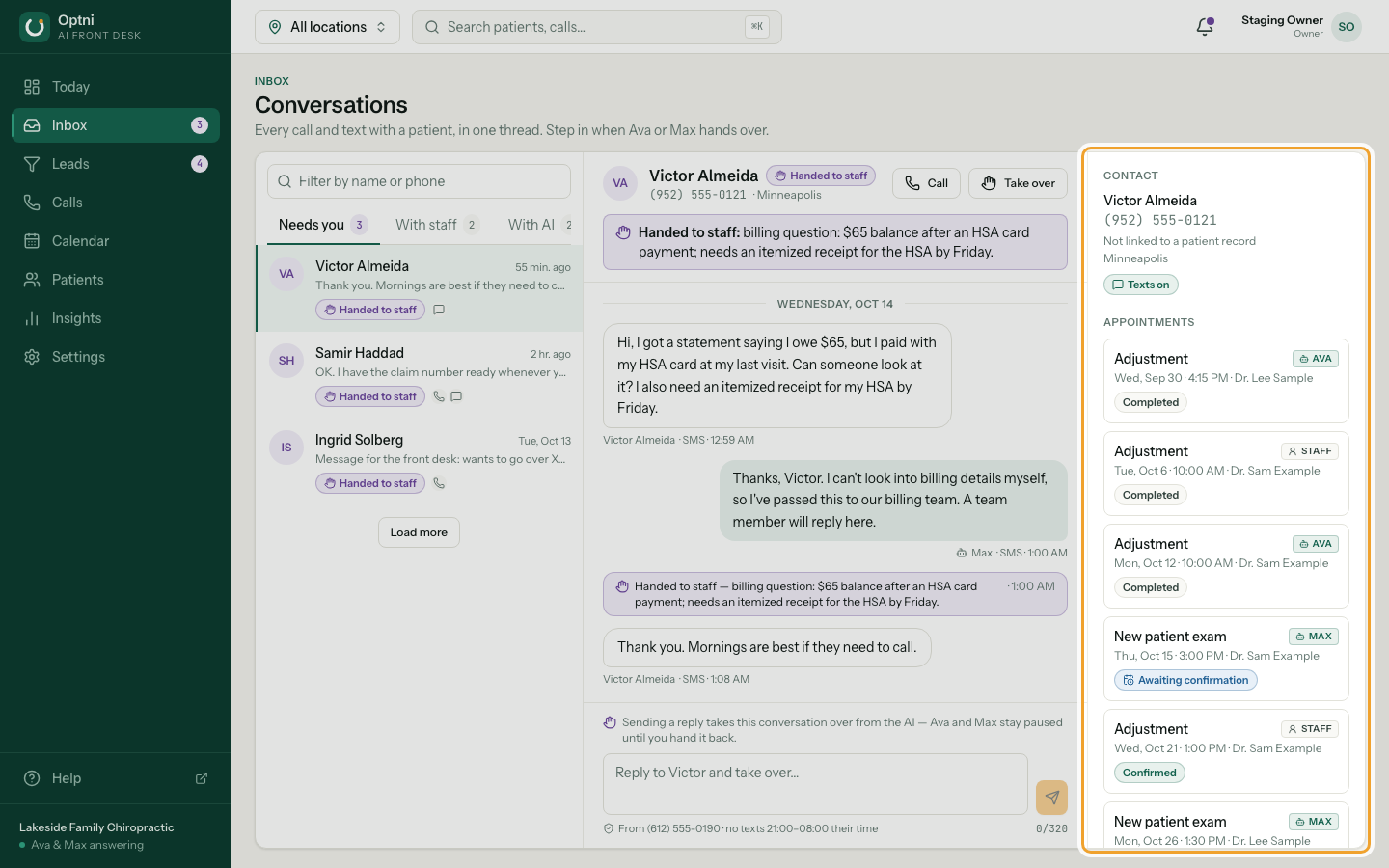
Step 6: Use the side panel for the customer's details and bookings.
What the statuses mean
- AI handling — Ava or Max is talking to the customer.
- Handed to staff — the AI asked for a person and paused.
- Staff replying — a person took over. The AI stays paused.
- Live call — Ava is on the phone now. Take over becomes available when the call ends.
What pausing does
- Max doesn't reply to new texts from this customer.
- Missed-call text-back is skipped for them.
- New calls go to your forwarding number or voicemail instead of Ava.