Mobile app and notifications
Notifications: what you're alerted about
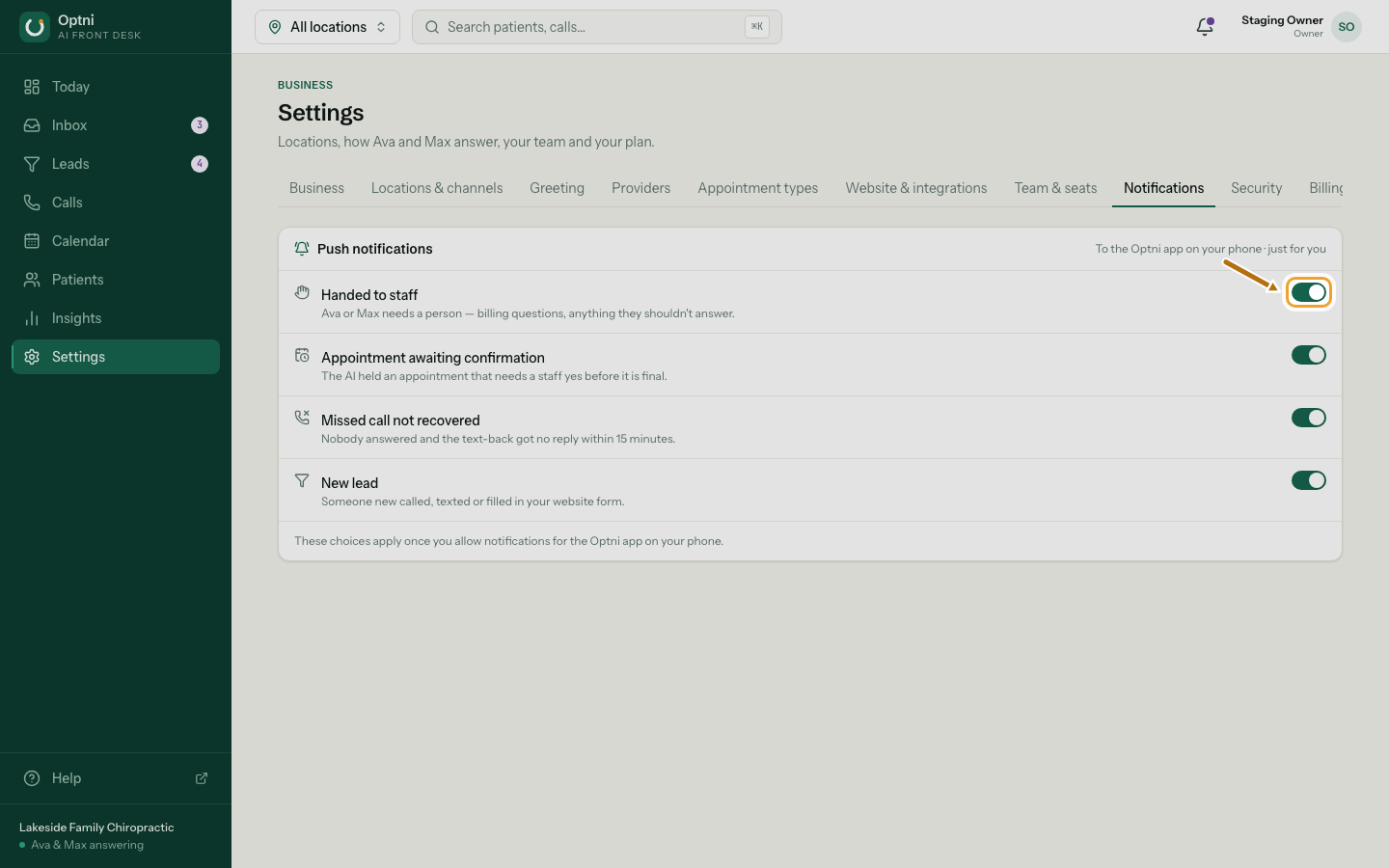
Optni sends push notifications to the Optni app on your phone. You choose which kinds you get. The choices are yours alone and follow you to every device you sign in on.
Steps
-
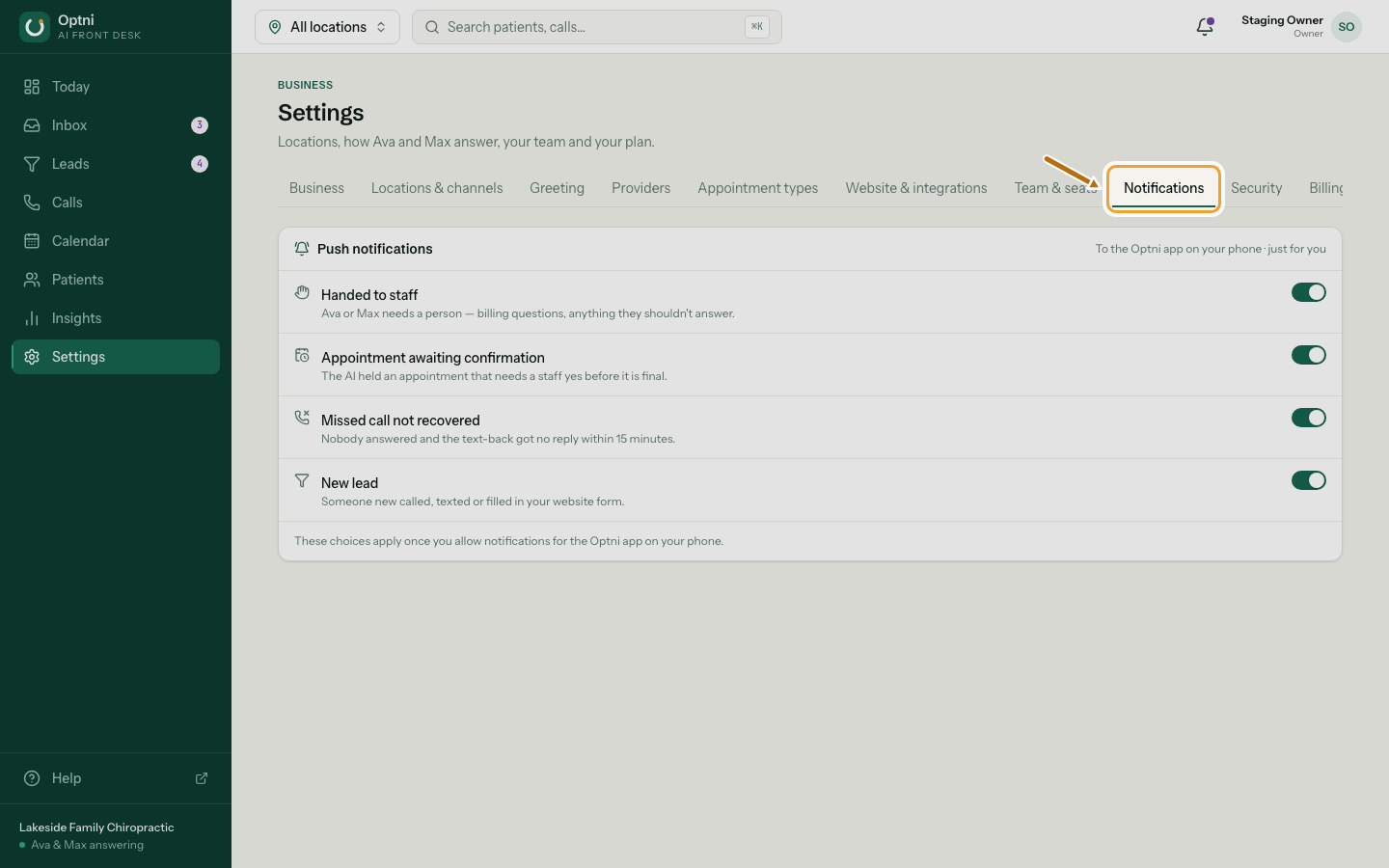
Step 1: Go to Settings → Notifications.
In the app: More → Notifications.
-
Step 2: Switch each kind of alert on or off.
-
Step 3: On your phone, allow notifications for the Optni app.
The app asks the first time you sign in. If you said no, turn them on in your phone's settings.
The alerts
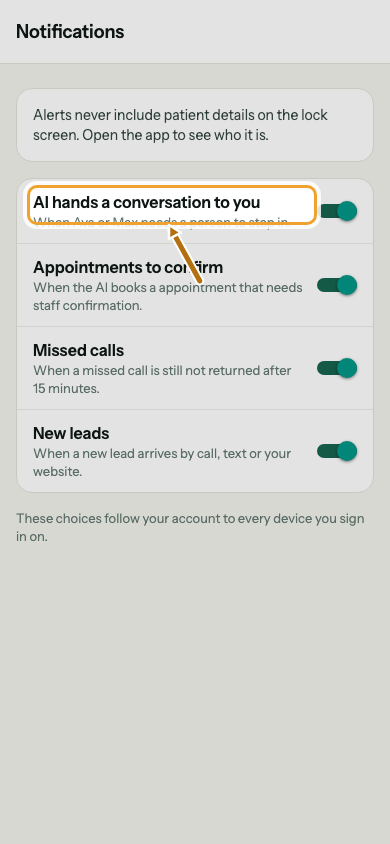
- AI hands a conversation to you — Ava or Max needs a person.
- Appointments to confirm — the AI made a booking that needs staff confirmation.
- Missed calls — a missed call is still not returned after 15 minutes.
- New leads — someone new called, texted or filled in your website form (owners and admins).
Privacy on the lock screen
Alerts never include the customer's name or message. Open the app to see who it is.