Mobile app and notifications
The Optni mobile app
The Optni app is for when you're away from the desk. It has four tabs — Today, Inbox, Leads and Schedule — plus More for settings.
Steps
-
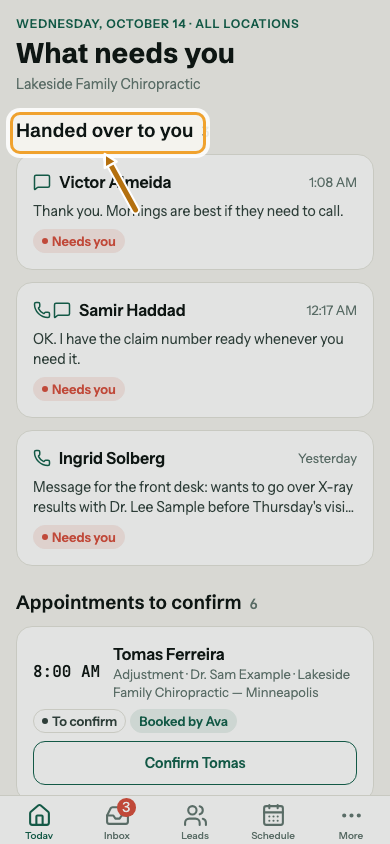
Step 1: Open Today to see what needs you.
Handovers come first, then bookings to confirm and missed calls.
-
Step 2: Tap a notification to go straight to it.
A handover opens the conversation, a booking opens the booking, a missed call opens Today and a new lead opens the lead. If it's for another of your businesses, the app switches first.
-
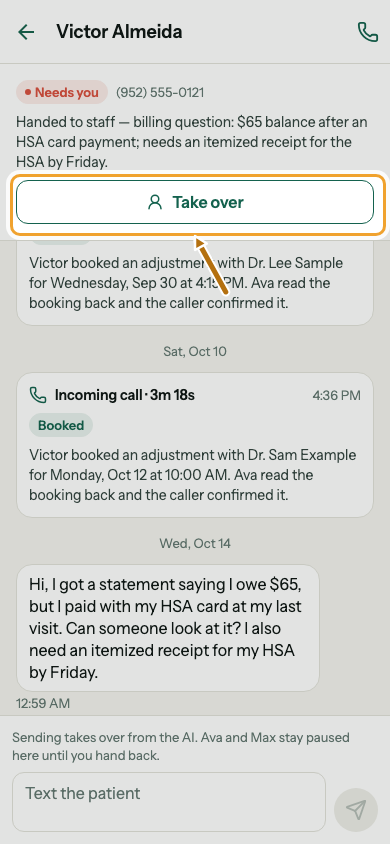
Step 3: In a conversation, tap Take over to reply yourself.
Tap Hand back to AI when you're done.
-
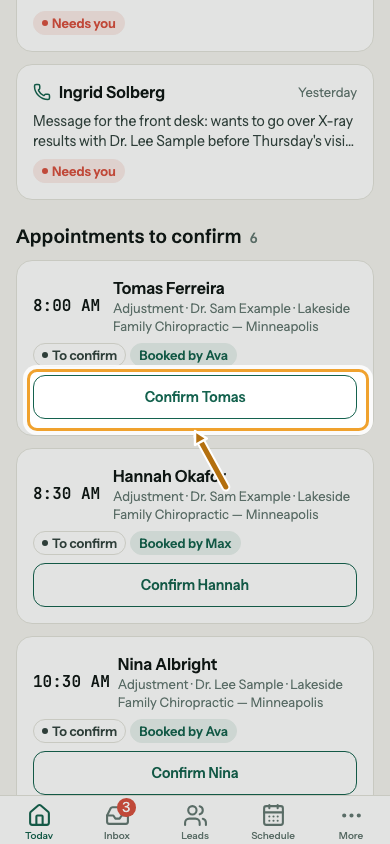
Step 4: On Today, tap Confirm on a booking the AI made.
-
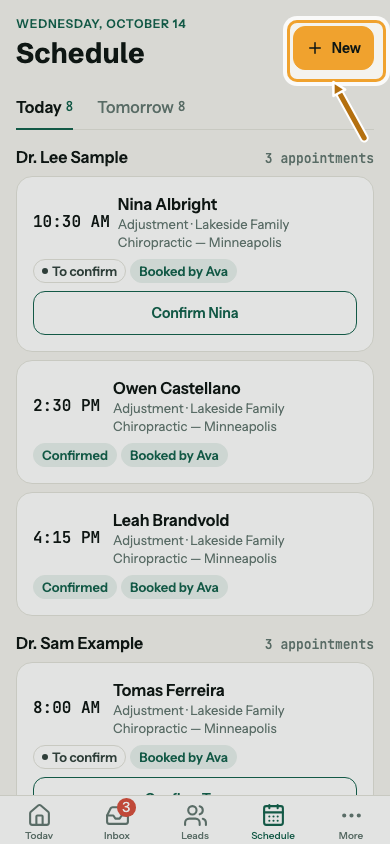
Step 5: Open Schedule to see the day and book someone.
-
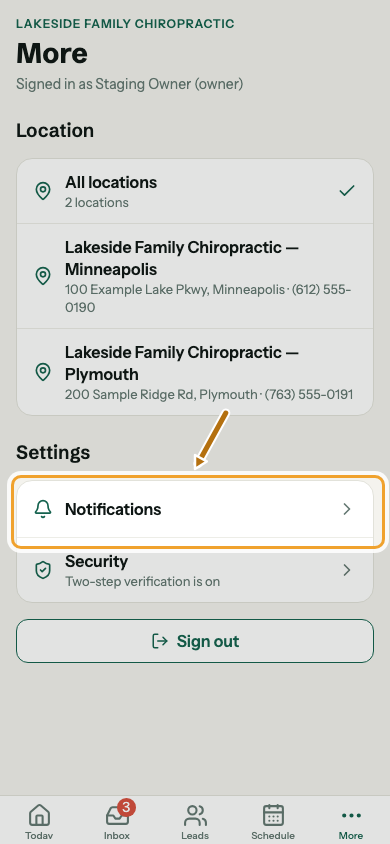
Step 6: Open More for notifications, security and signing out.
Good to know
- Owners and admins enter their 6-digit code after the password, like on the web.
- Staff only see their own locations.