Leads, contacts and insights
Leads: stages, sources, owners and value
Every first call or text from an unknown number becomes a lead in New. So does every website form and anyone you add yourself. Ava and Max keep talking to leads whatever their stage — the pipeline is for your team.
Steps
-
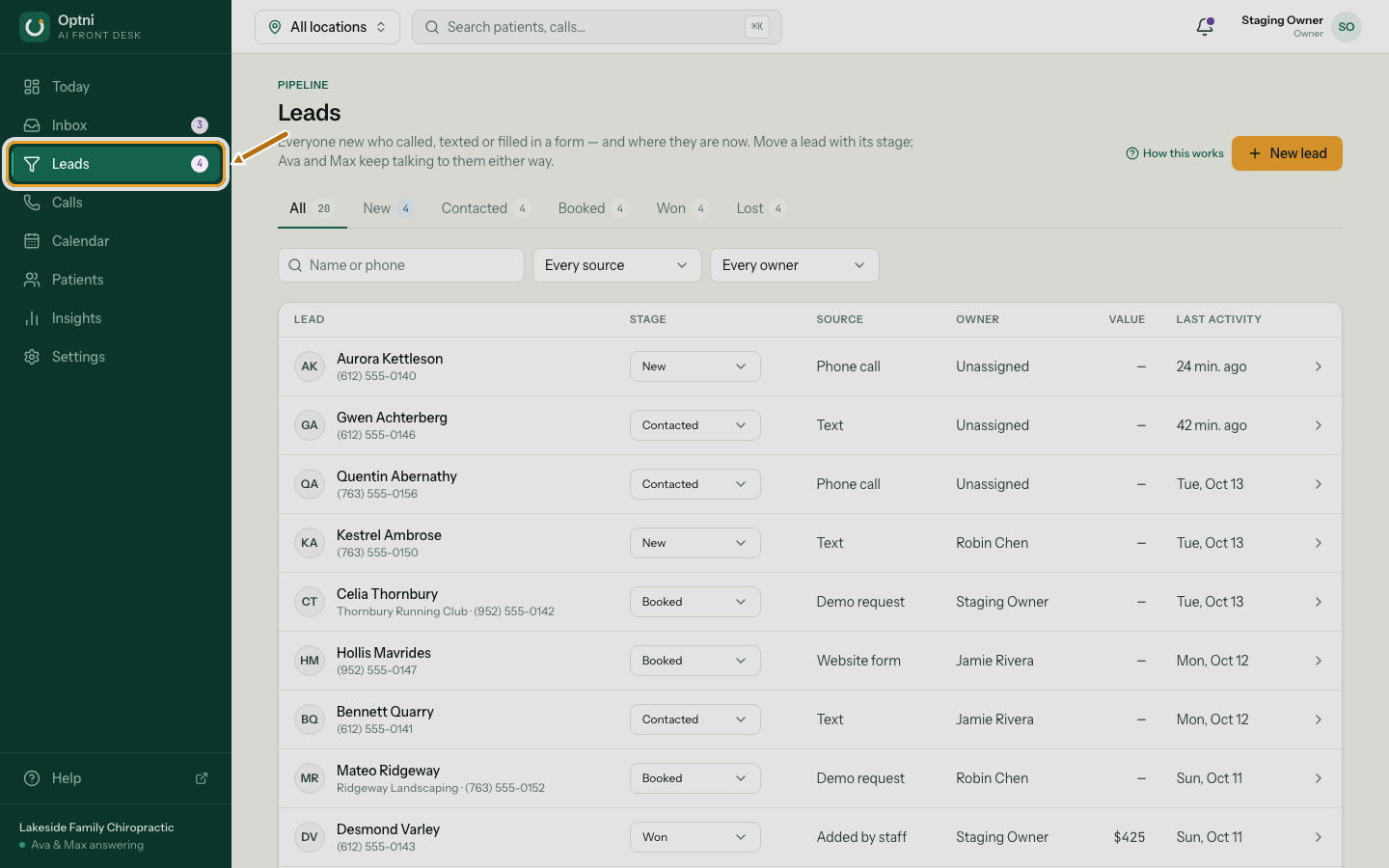
Step 1: Select Leads in the sidebar.
The number on Leads is how many are new.
-
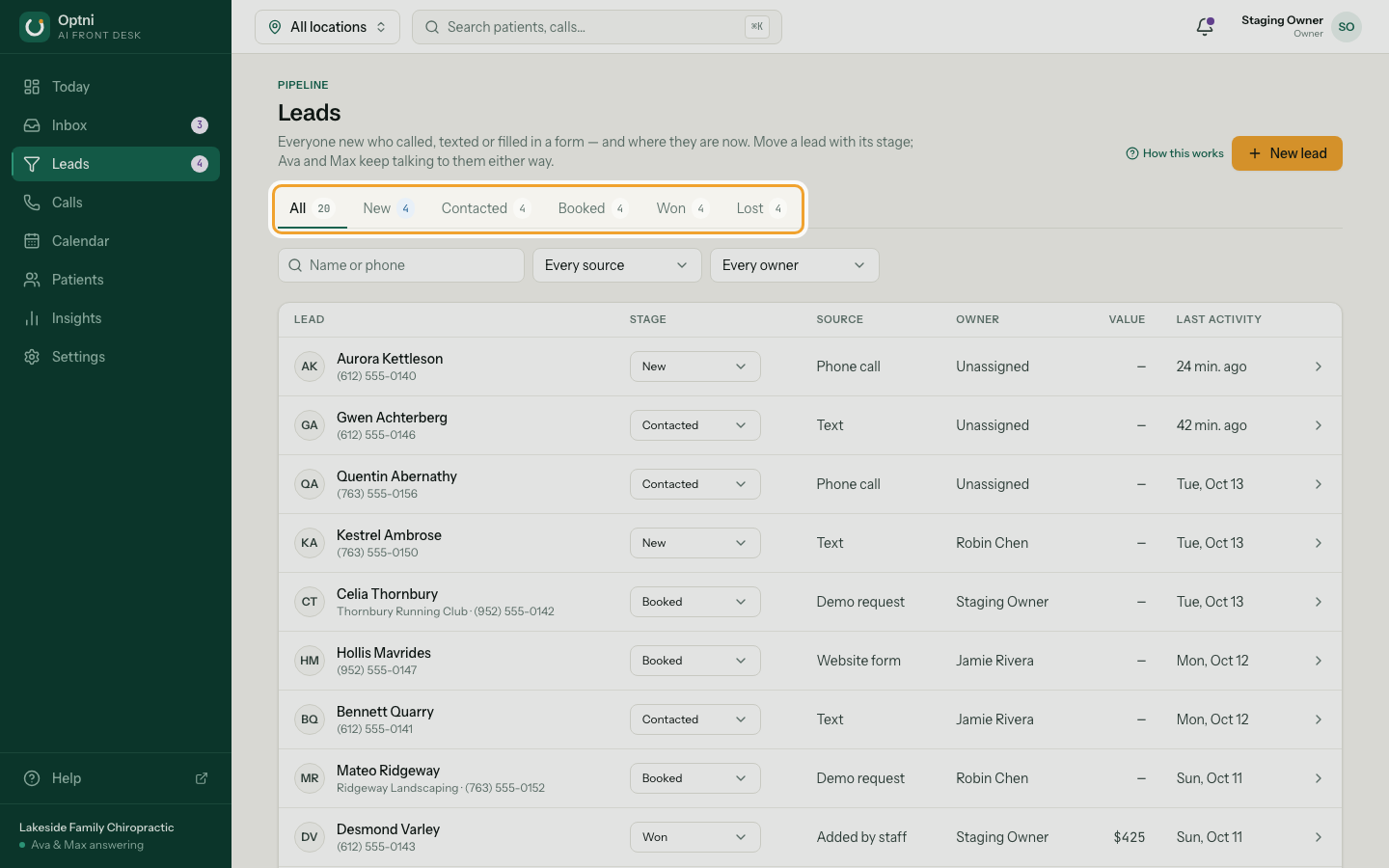
Step 2: Use the stage tabs to see each step of the pipeline.
The counts are exact. Your industry sets the stages — for example New, Contacted, Booked, Won and Lost.
-
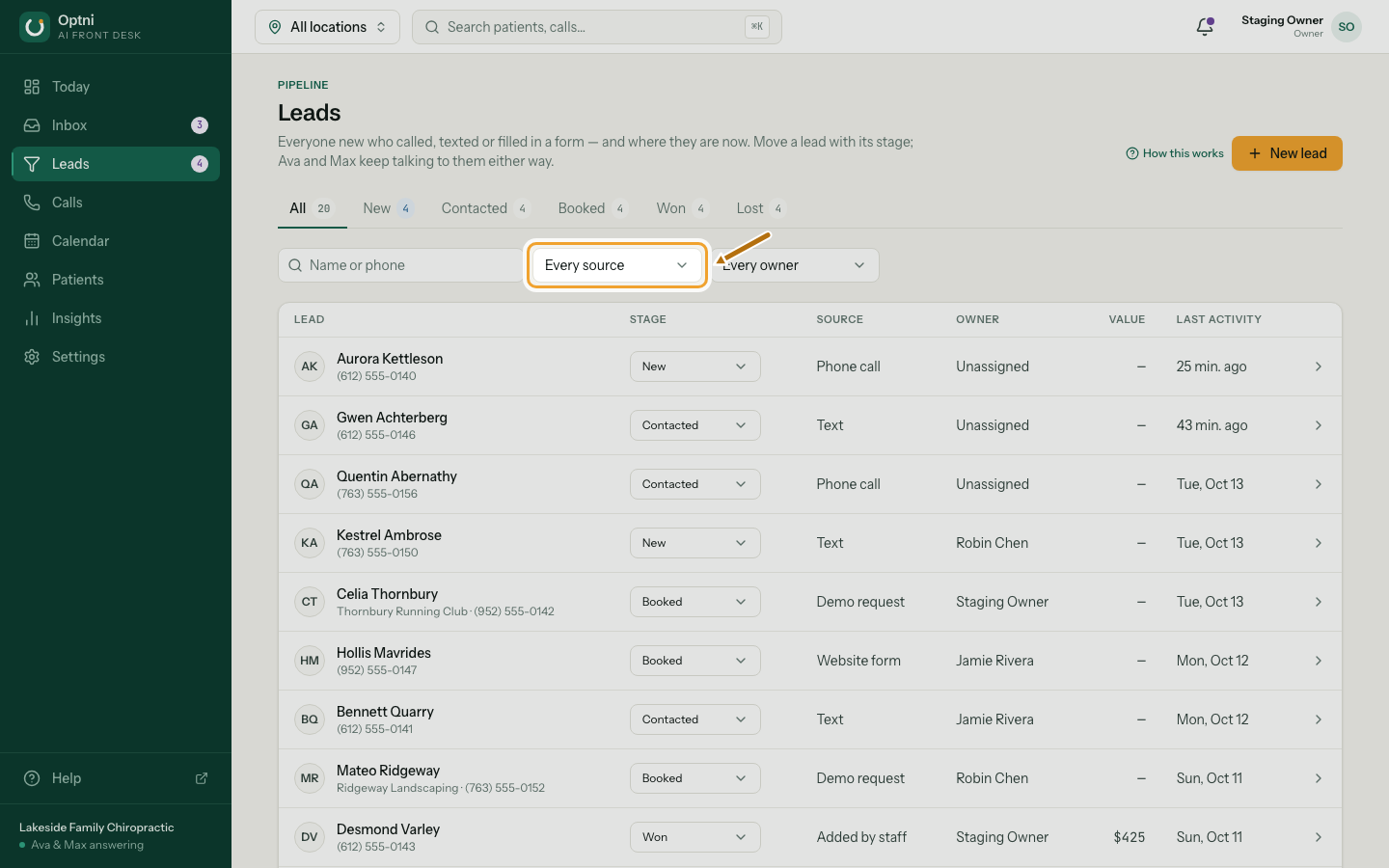
Step 3: Search by name or phone, or filter by source and owner.
-
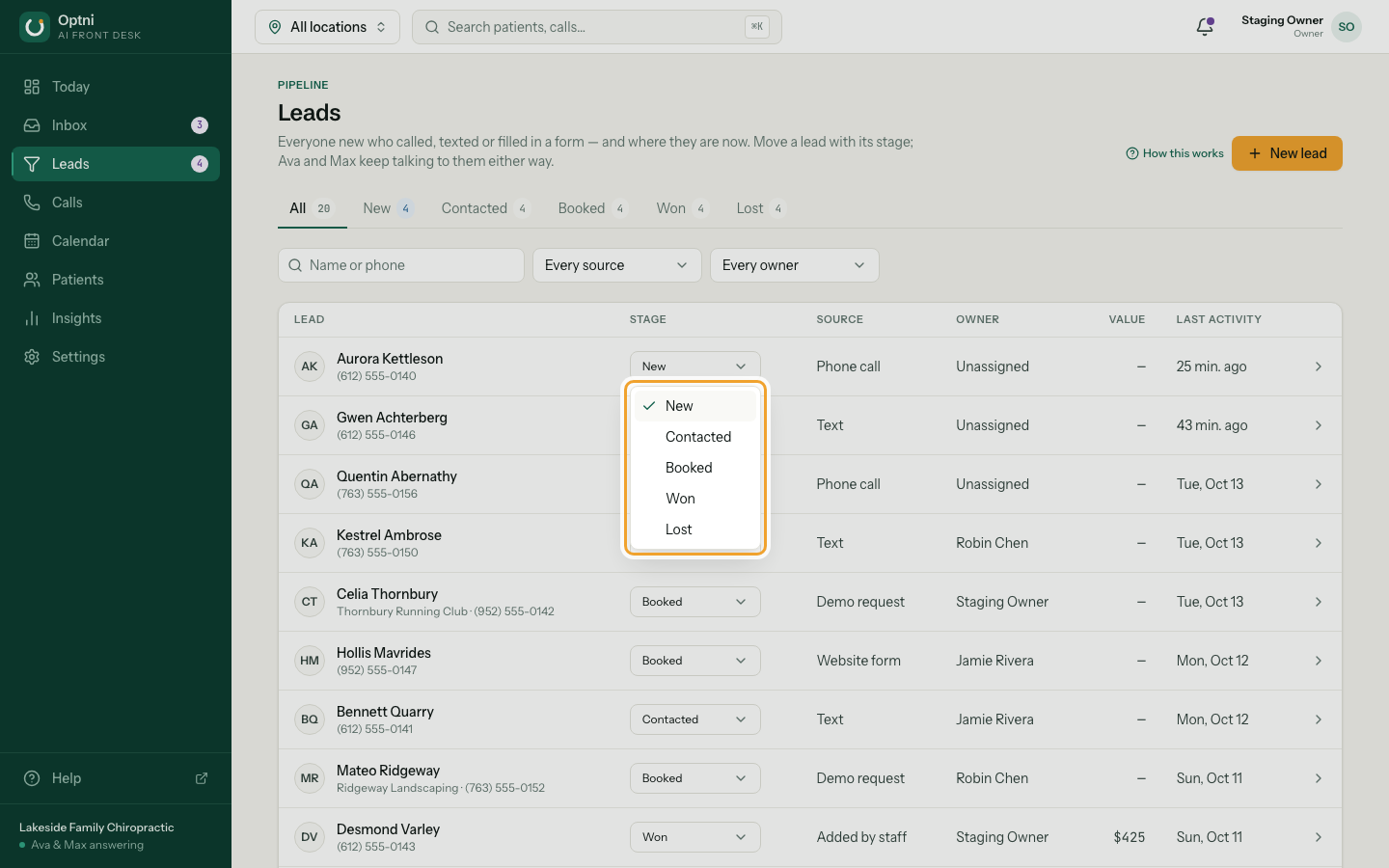
Step 4: Change a lead's stage with the menu on its row.
It moves to the new tab right away.
-
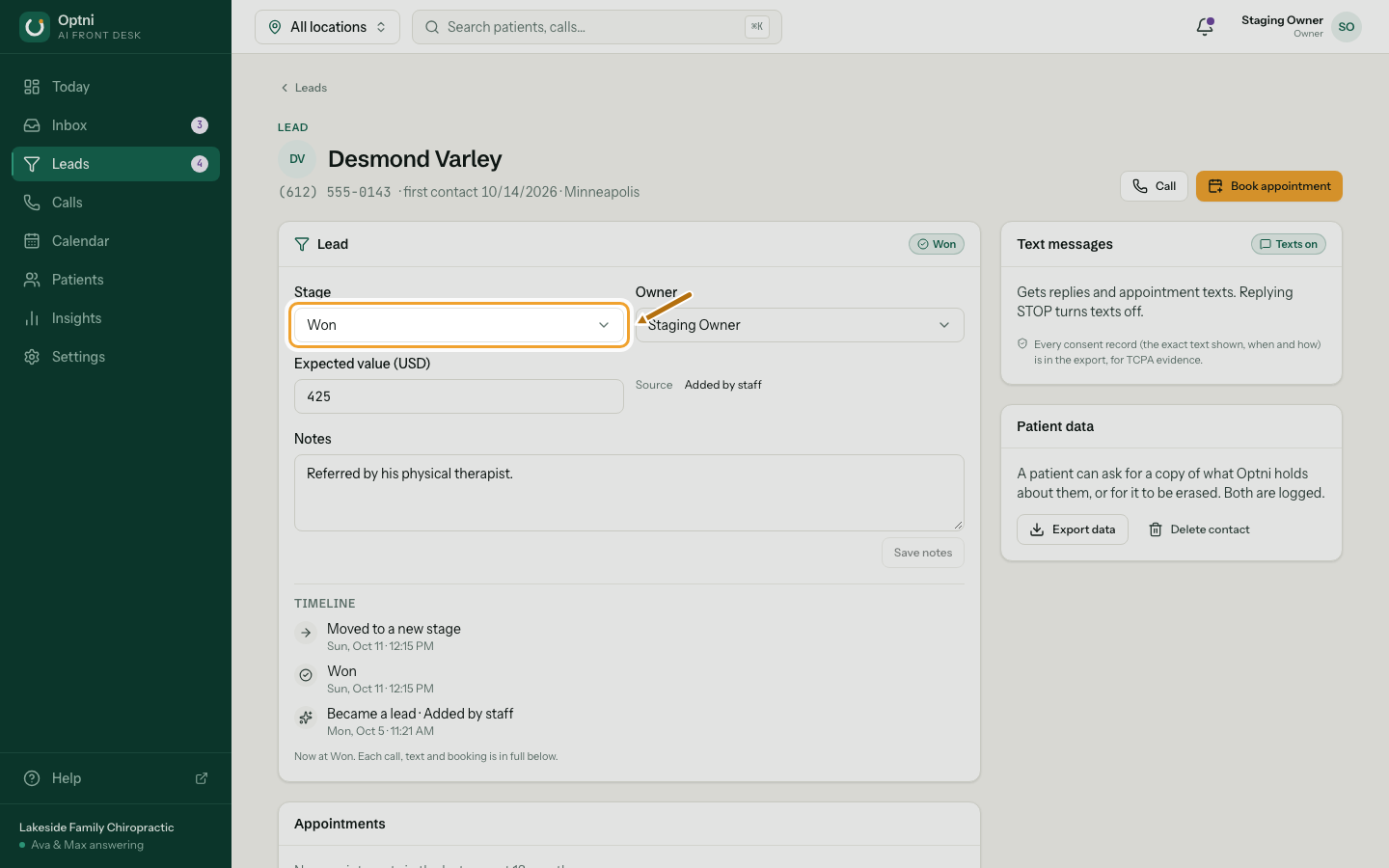
Step 5: Select a lead to open it.
You see their stage, owner, expected value, source, notes and a timeline of every call, text and booking.
-
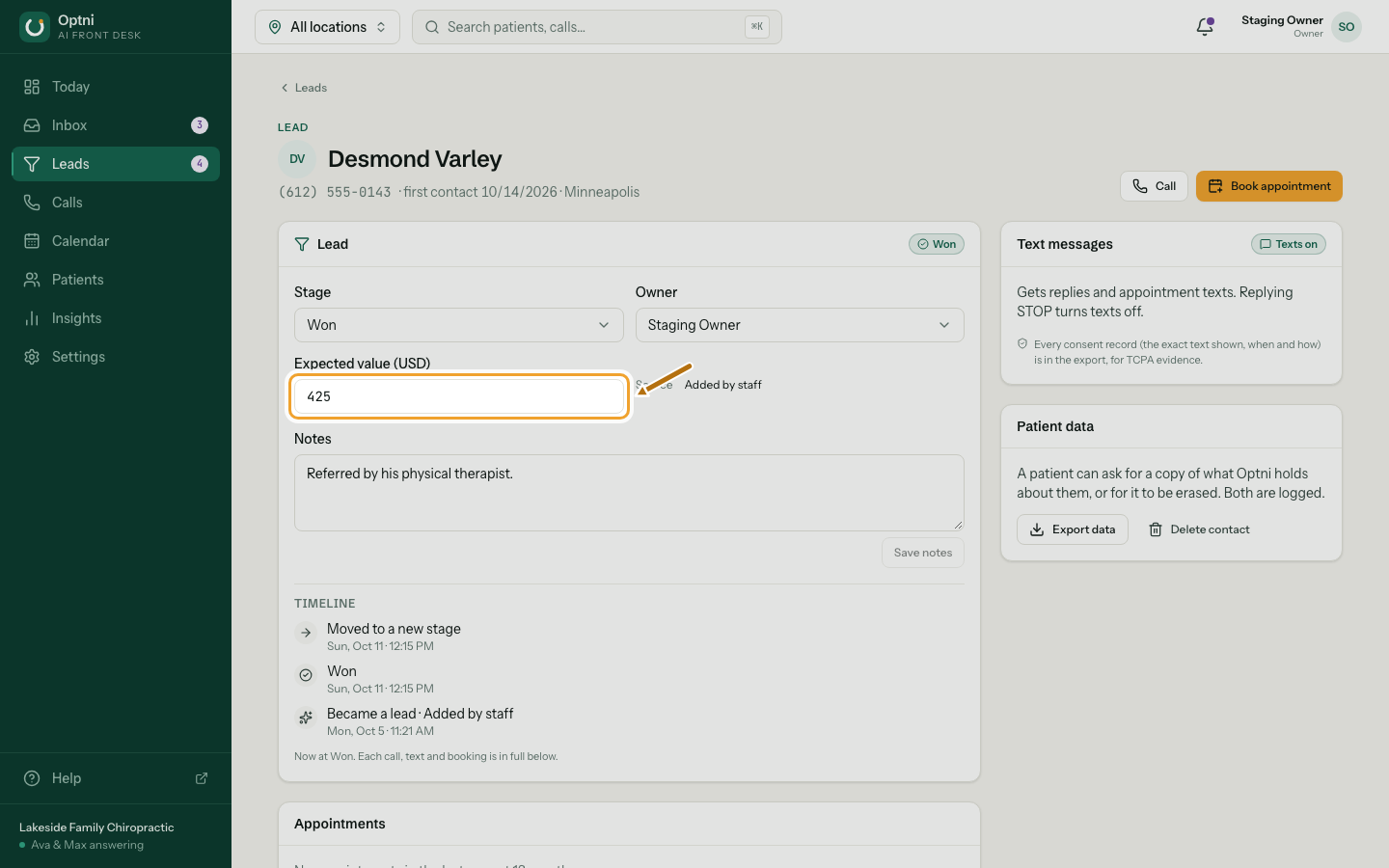
Step 6: Pick an owner and type the expected value.
The value saves when you leave the box. Use it to see what your pipeline is worth.
-
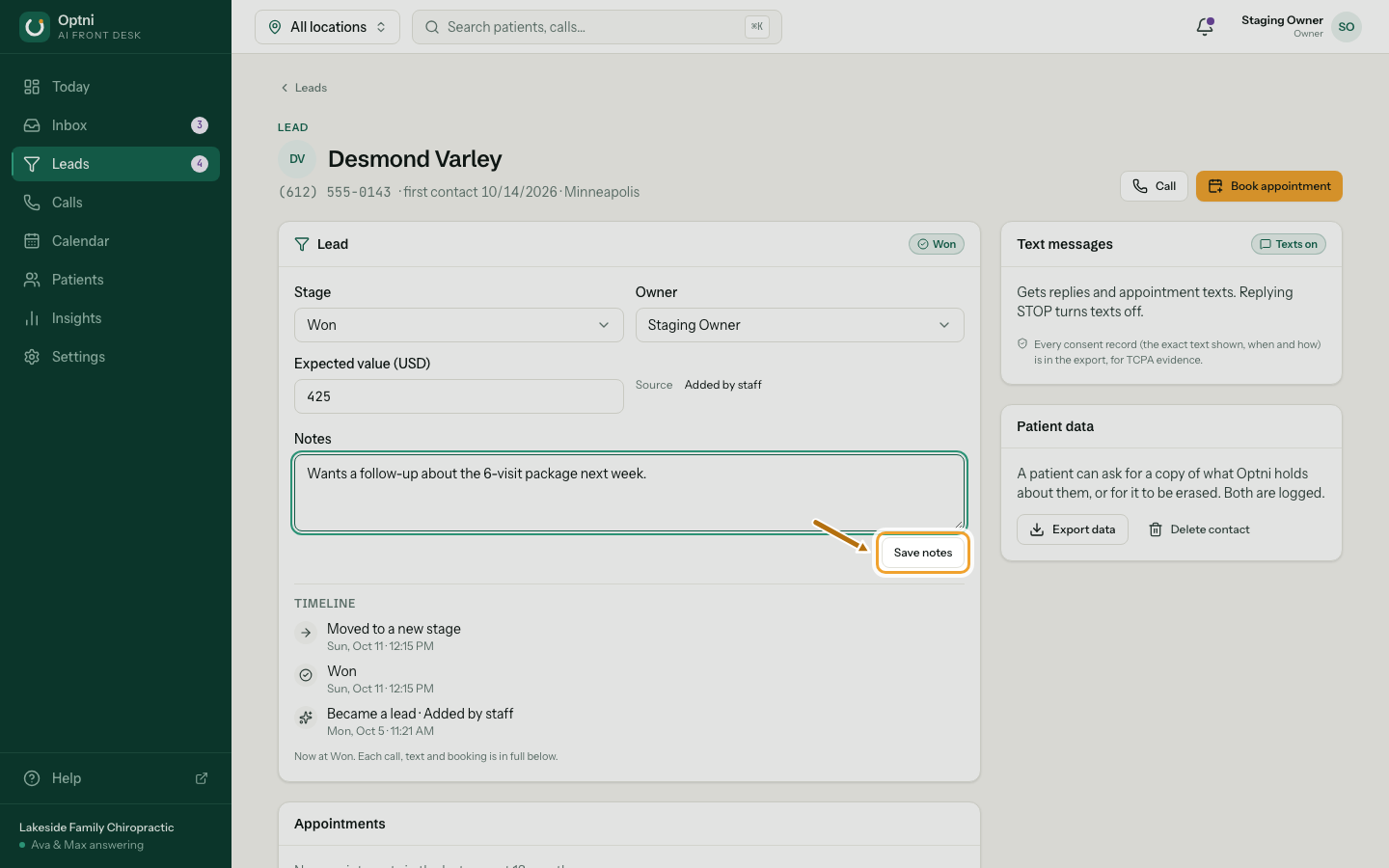
Step 7: Write notes and select Save notes.
When a lead is Lost, a Lost reason box appears too.
Sources
- Phone call / Text — their first call or text to your number.
- Website form / Demo request — sent by your website (see Website lead form).
- Added by staff — someone on your team added them.
- Import — brought in from another system.
Good to know
- One lead per phone number. Adding the same number again opens the existing lead.
- Owners and admins can get a push alert for each new lead.
- Test calls never create leads.