Leads, contacts and insights
Contacts: search, export and delete
Everyone who has called or texted, or been added, is a contact — one per phone number. The page is named for your industry: Patients, Clients or Customers. For software businesses it's Contacts, next to Leads.
Steps
-
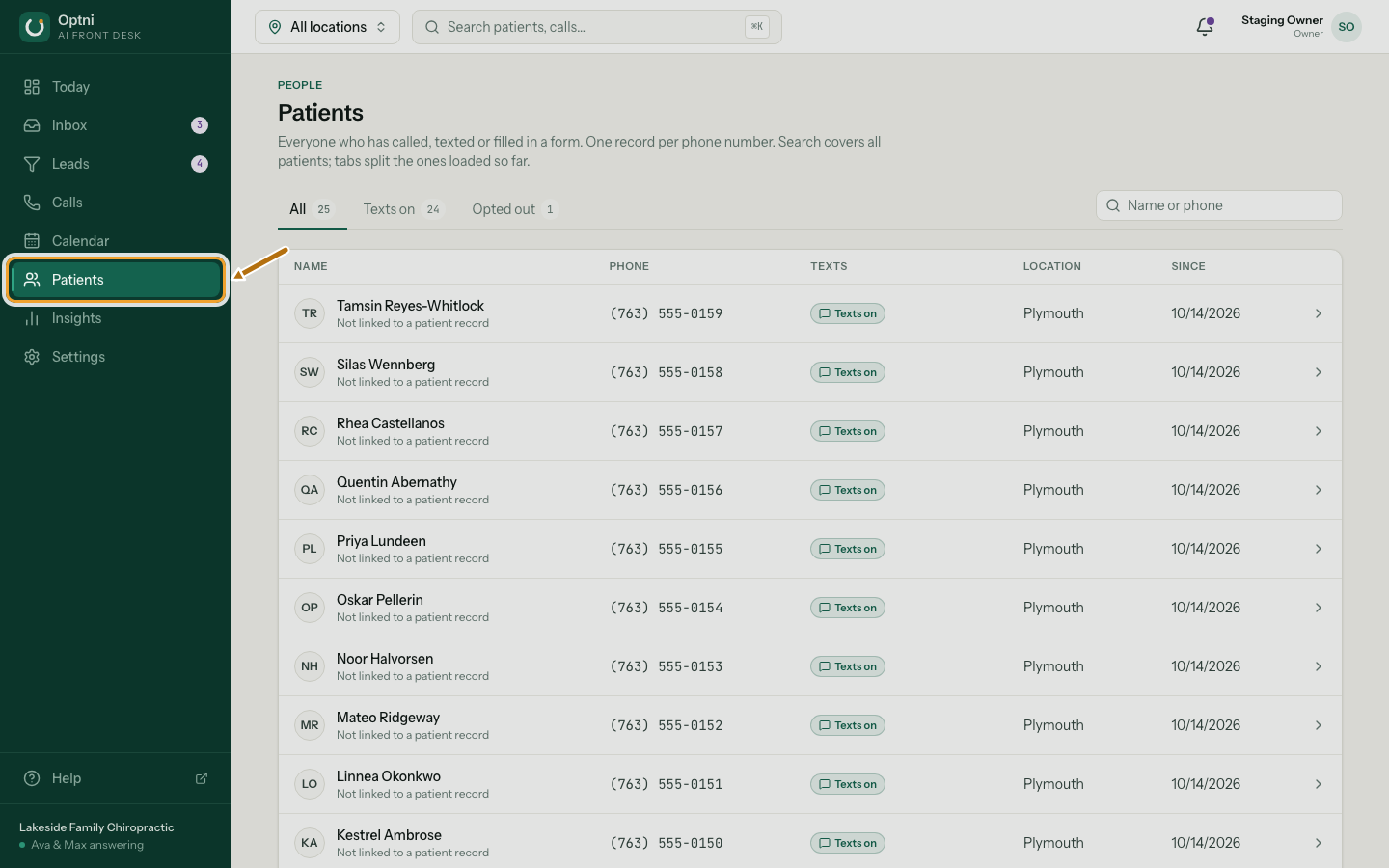
Step 1: Select Patients, Clients or Customers in the sidebar.
-
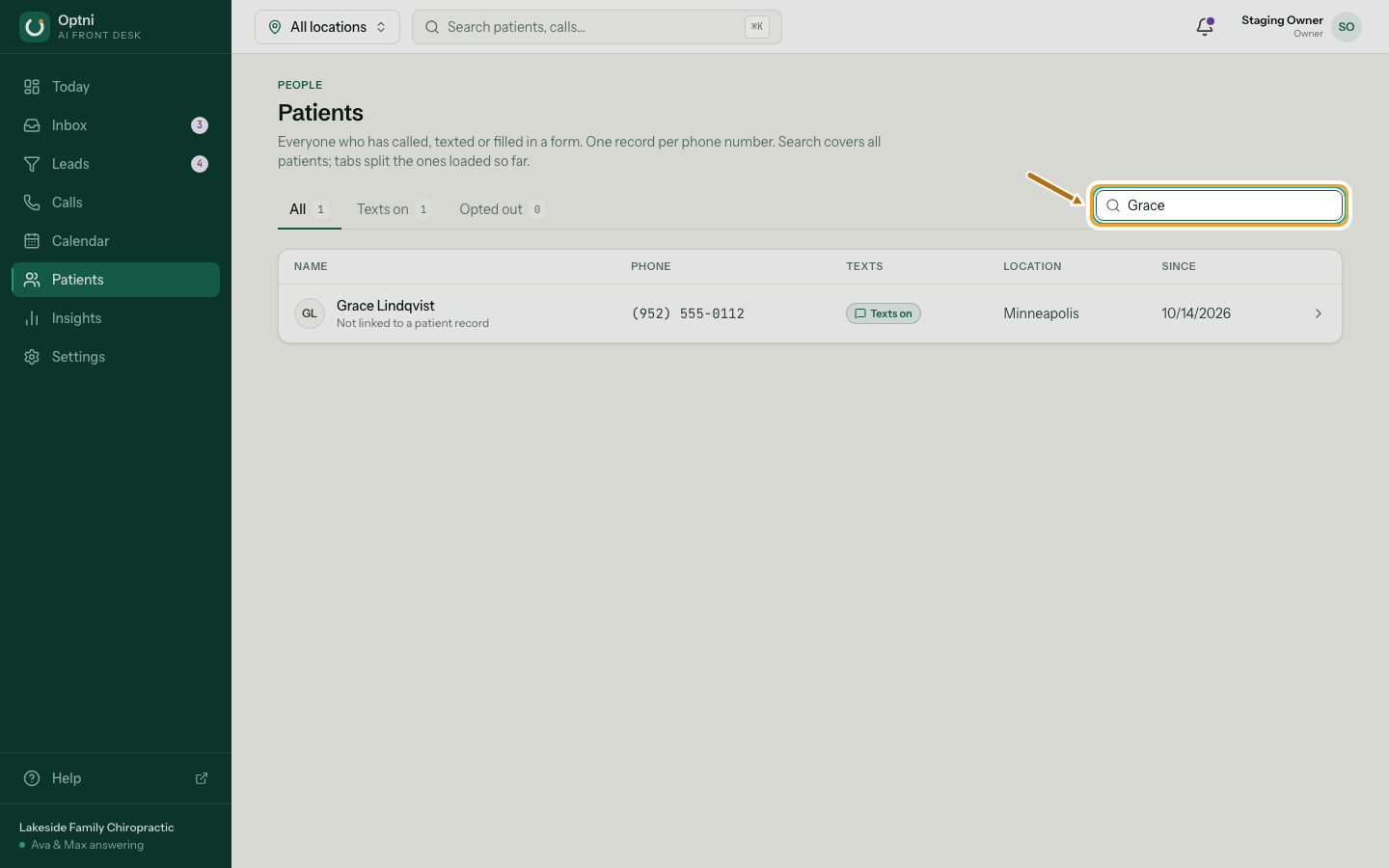
Step 2: Search by name or phone number.
Part of a name works ("Gra"). For phone numbers, type the whole number.
-
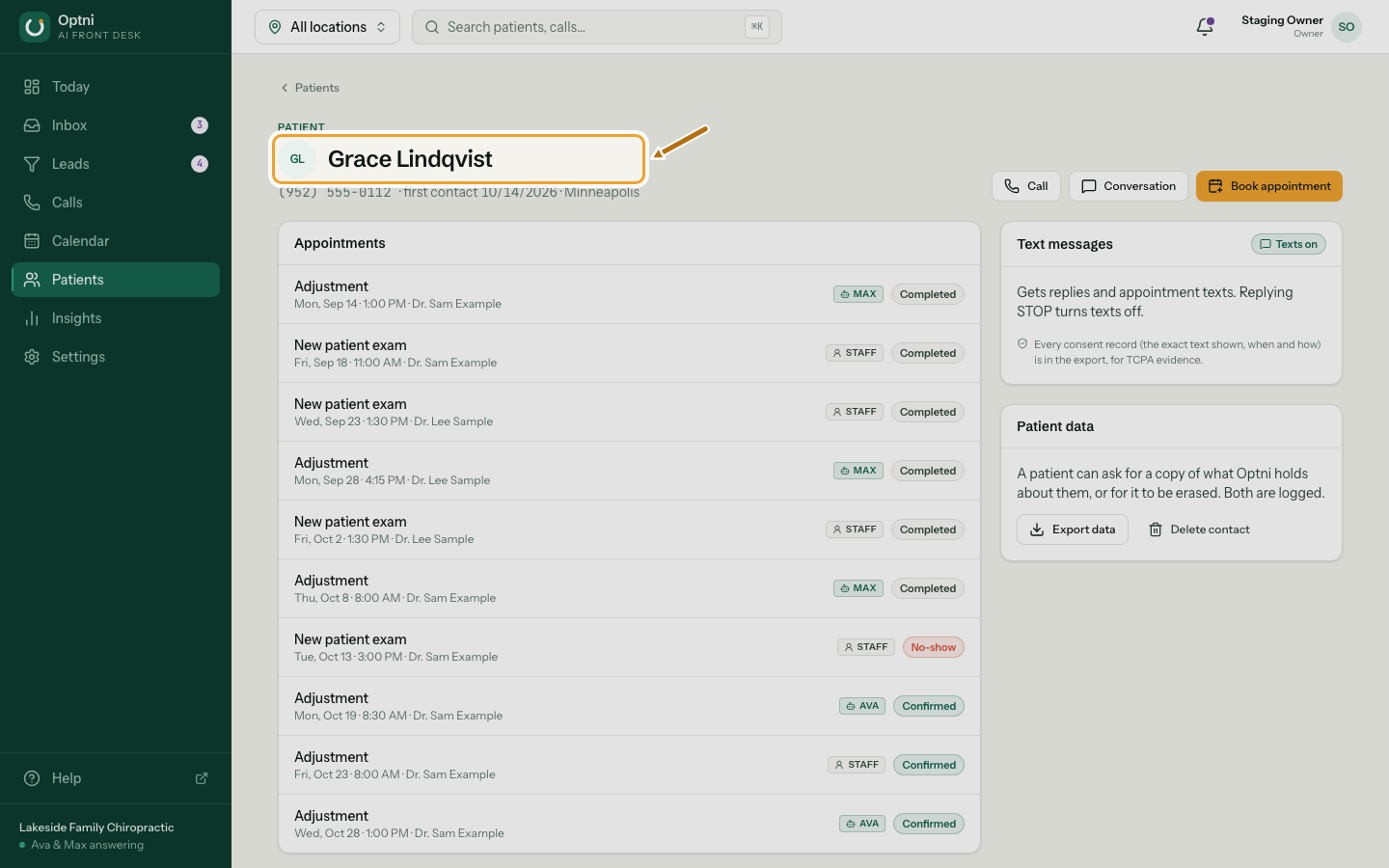
Step 3: Open a contact to see their conversation, calls and bookings.
-
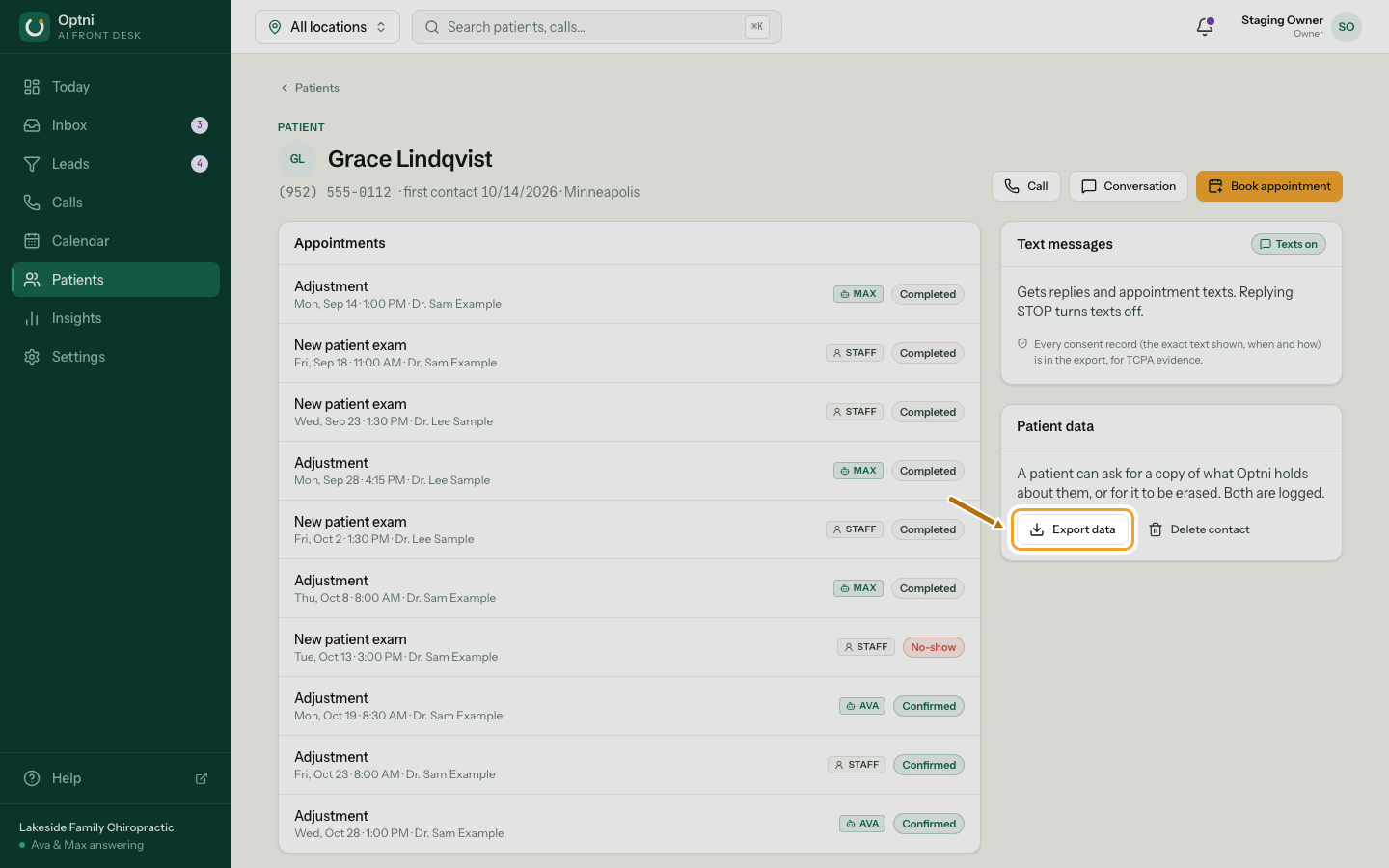
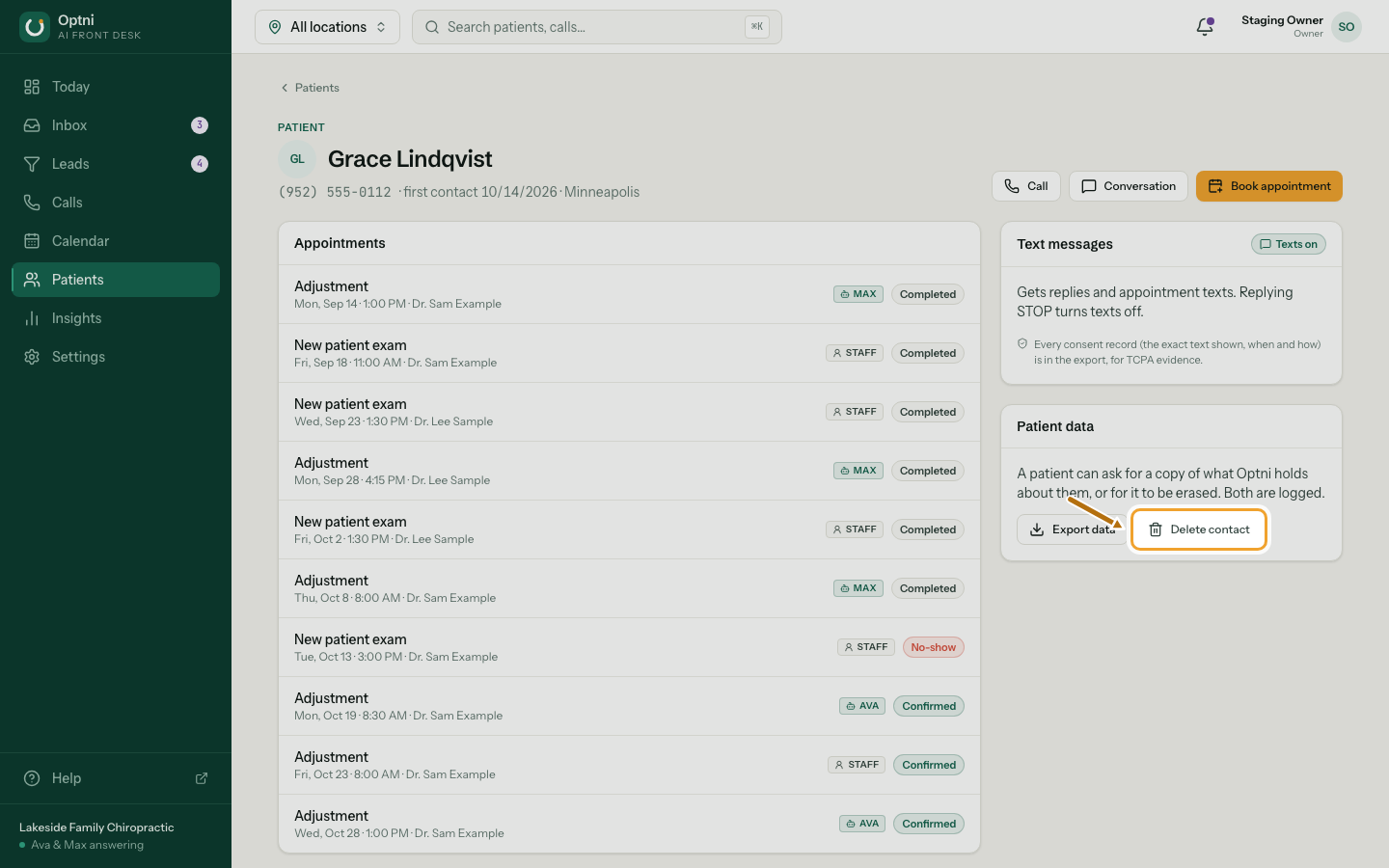
Step 4: To give someone a copy of their data, select Export data.
You get one JSON file with their details, conversations, calls, bookings and consent records.
-
Step 5: To erase someone, select Delete contact.
-
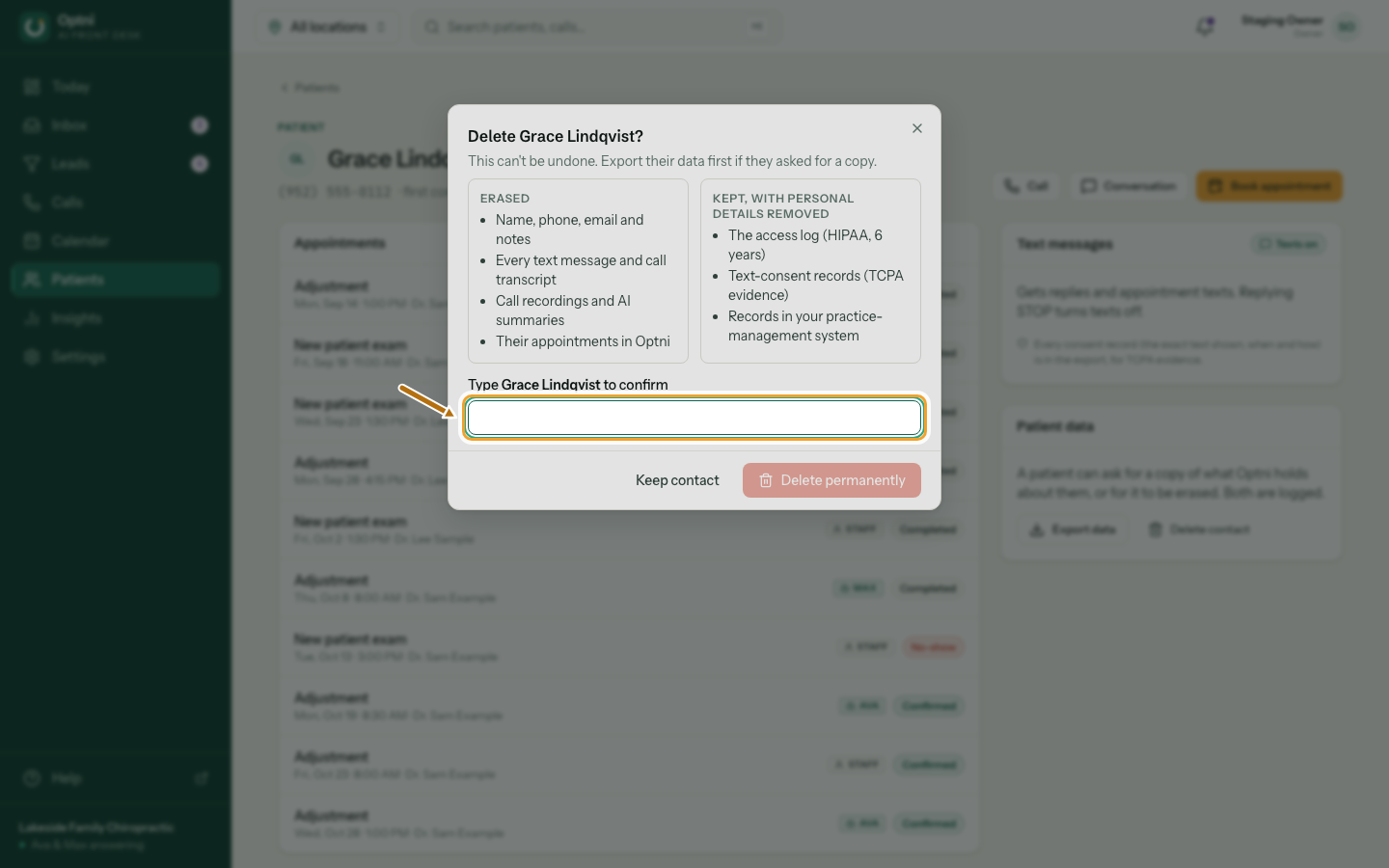
Step 6: Read what's erased and kept, type their name, and select Delete permanently.
This can't be undone. Export first if they asked for a copy.
What delete erases
- Name, phone, email and notes.
- Every text message and call transcript.
- Call recordings and AI summaries.
- Their bookings in Optni.
What delete keeps (with personal details removed)
- The access log — who opened what and when. Kept for 6 years.
- Text-consent records, so a STOP keeps working if they text again.
- Records in your other systems (for example your practice-management system). Delete them there too.