Leads, contacts and insights
Website lead form: send form leads to Optni
Your website form can send each submission straight to Optni. The person becomes a lead (source: Website form or Demo request), the consent text they agreed to is recorded, and owners and admins get a push alert. You need one intake key per website or form.
Steps
-
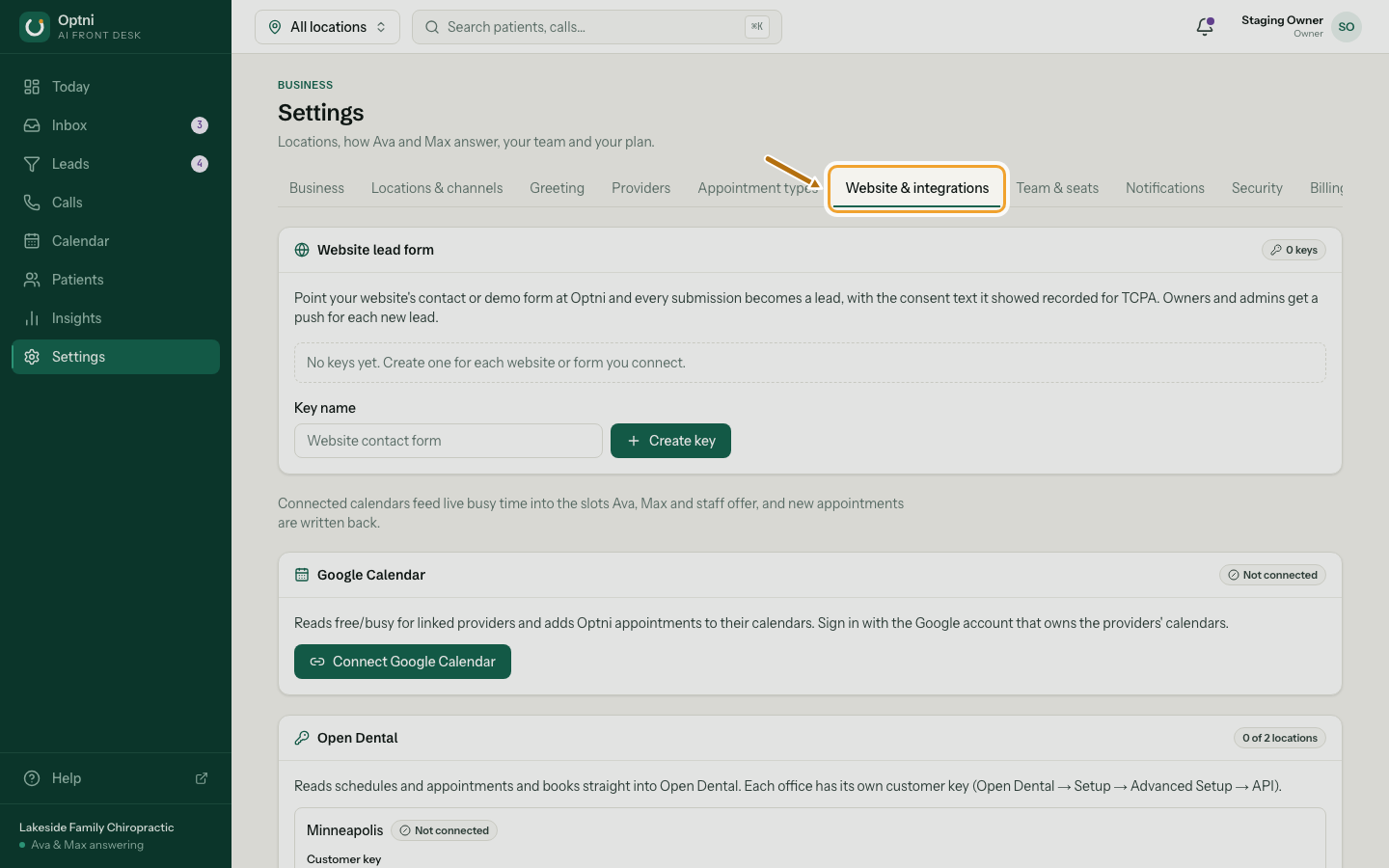
Step 1: Go to Settings → Website & integrations.
-
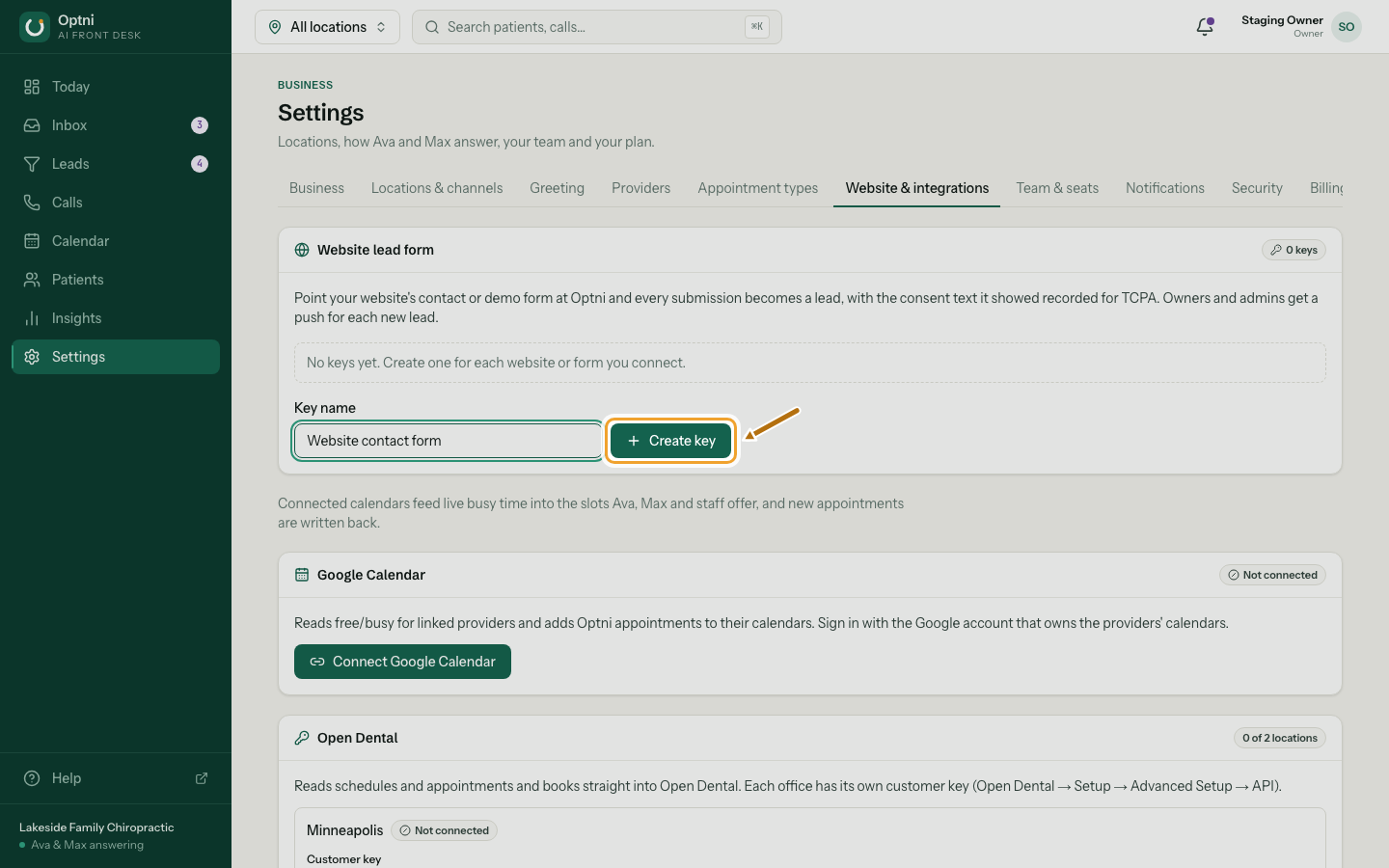
Step 2: Name the key after the form, then select Create key.
For example "Website contact form". The name helps you tell keys apart later.
-
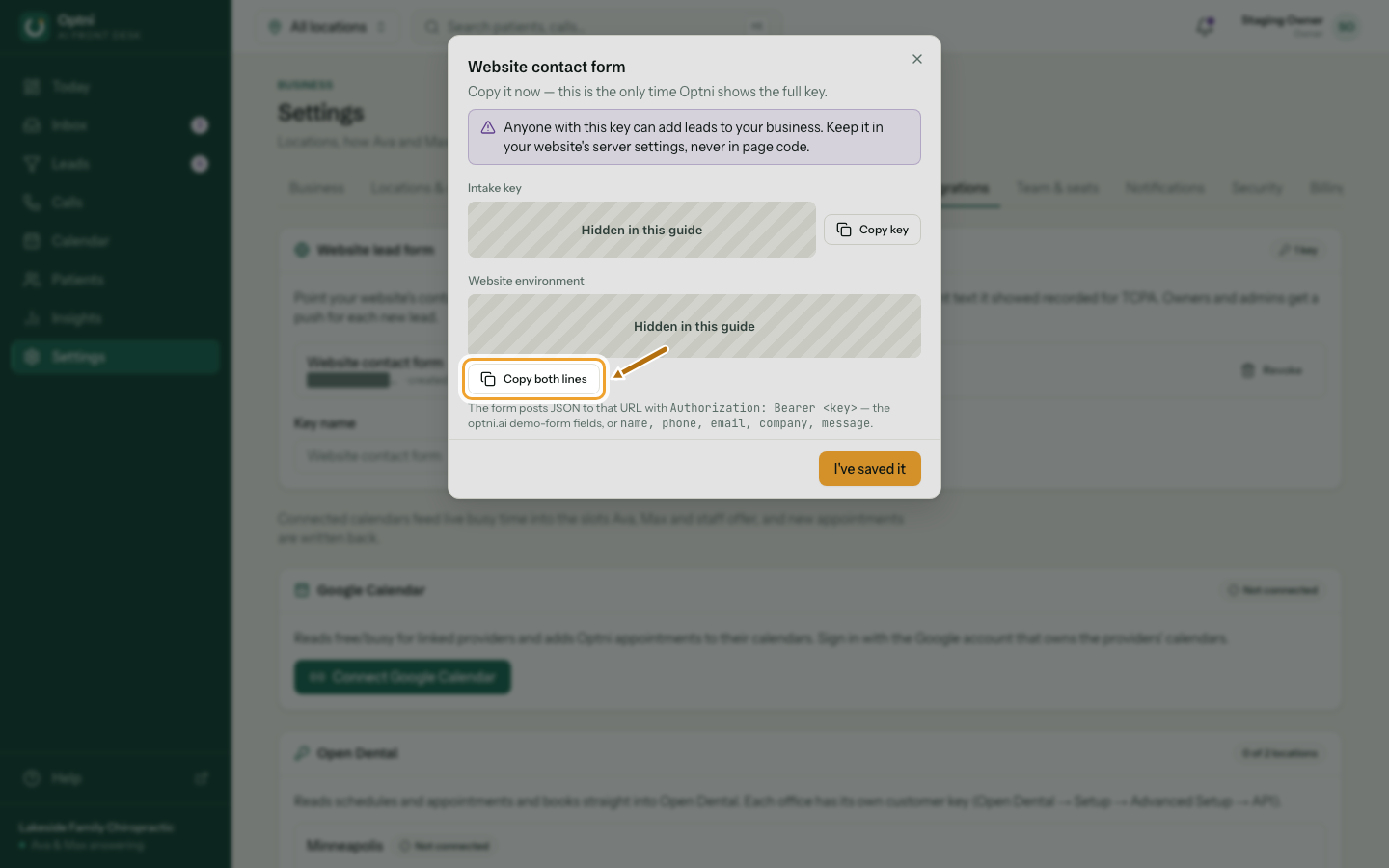
Step 3: Select Copy both lines and give them to your web developer.
This is the only time Optni shows the full key. Keep it in your website's server settings, never in page code.
-
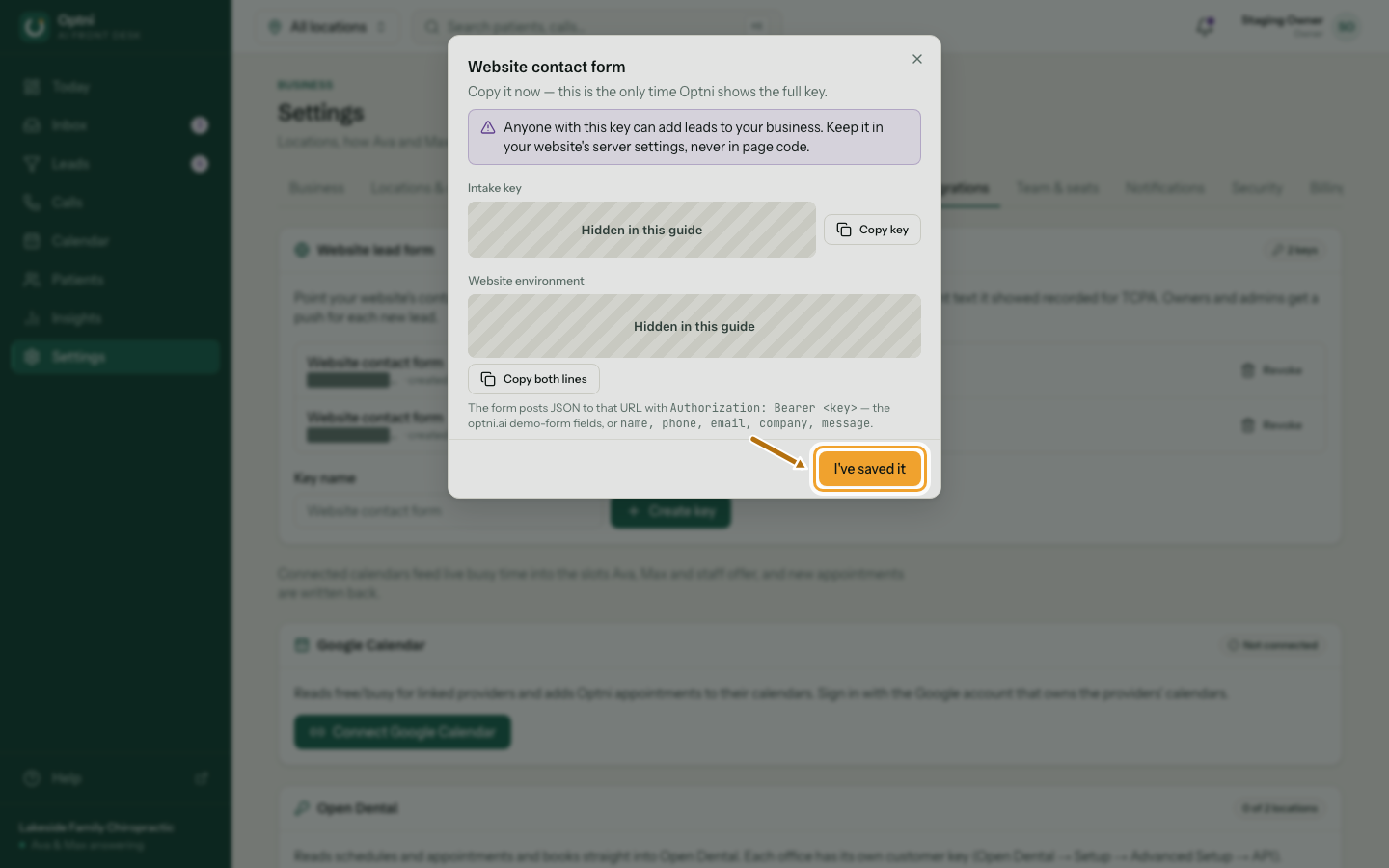
Step 4: Select I've saved it.
The key now shows in the list by its first few characters, with when it was last used.
-
Step 5: Submit your form once with your own details and check Leads.
The test lead appears in New within seconds. Delete it from Contacts afterwards if you like.
For your web developer: the two settings
Put the two lines from the dialog in the website's server-side environment (for example a .env file or the hosting provider's settings). They look like this:
LEAD_WEBHOOK_URL=https://<your Optni API address>/v1/intake/leads
LEAD_WEBHOOK_TOKEN=oi_live_<the rest of your key>
For your web developer: the request
When the form is submitted, your server sends one POST with the key as a bearer token. Required: name and phone (any common format). Optional: email, company, message and source (a short label for the form).
curl -X POST "$LEAD_WEBHOOK_URL" \
  -H "Authorization: Bearer $LEAD_WEBHOOK_TOKEN" \
  -H "Content-Type: application/json" \
  -d '{
    "name": "Jordan Example",
    "phone": "(612) 555-0177",
    "email": "jordan@example.com",
    "company": "Example Bakery",
    "message": "Do you have time this Friday?",
    "source": "website/contact"
  }'
Recording consent to call and text
If your form has a consent checkbox, also send consent: true, the exact consentText the person saw, and createdAt (when they submitted). Optni stores that text as the consent record for calls and texts. Sending the same phone and createdAt twice is ignored, so retries are safe.
{
  "name": "Jordan Example",
  "phone": "+16125550177",
  "email": "jordan@example.com",
  "company": "Example Bakery",
  "message": "Please call me about catering.",
  "source": "website/contact",
  "consent": true,
  "consentText": "By submitting this form I agree to receive calls and texts, including automated ones, from Example Bakery at the number provided. Consent is not a condition of purchase. Msg & data rates may apply. Reply STOP to opt out.",
  "createdAt": "2026-10-14T15:04:05Z"
}
Responses
- 201 — a new contact and lead were created.
- 200 with duplicate: true — this submission was already received. Nothing changed.
- 200 with leadCreated: false — the person was already a lead; the submission is added to their notes.
- 401 INVALID_INTAKE_KEY — the key is wrong or was revoked.
- 422 VALIDATION_FAILED — a field is missing or too long. The message names it.
- 429 — more than 30 submissions a minute for one key.
Revoking a key
Select the revoke (bin) button next to a key, then Revoke key. Forms using it stop creating leads at once. Leads already received stay.