Calendar and bookings
Confirm, reschedule, cancel or complete a booking
Open any booking from the calendar, Today or a contact's page. The buttons you see depend on whether it has started.
Steps
-
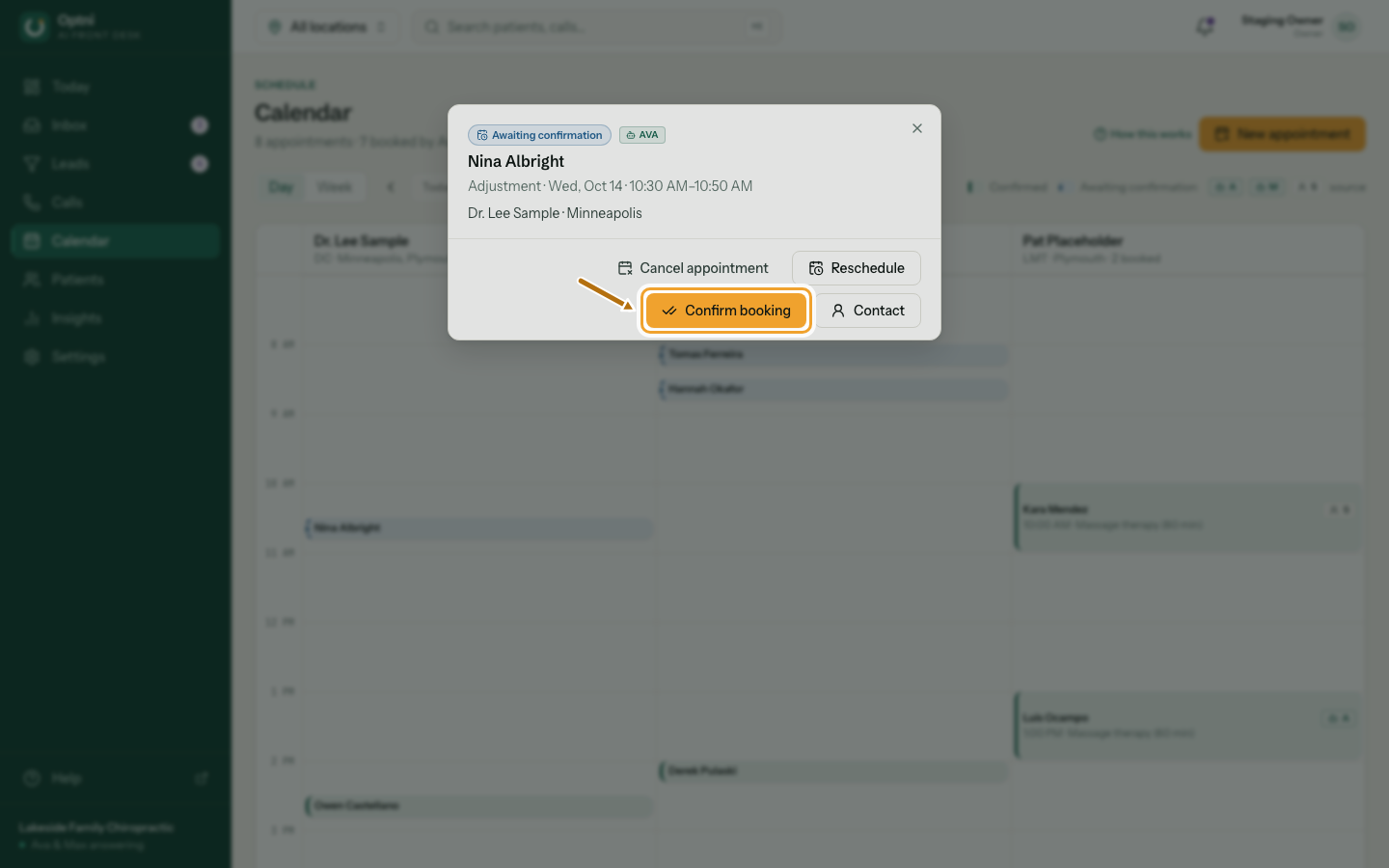
Step 1: To confirm a booking the AI made, select Confirm booking.
-
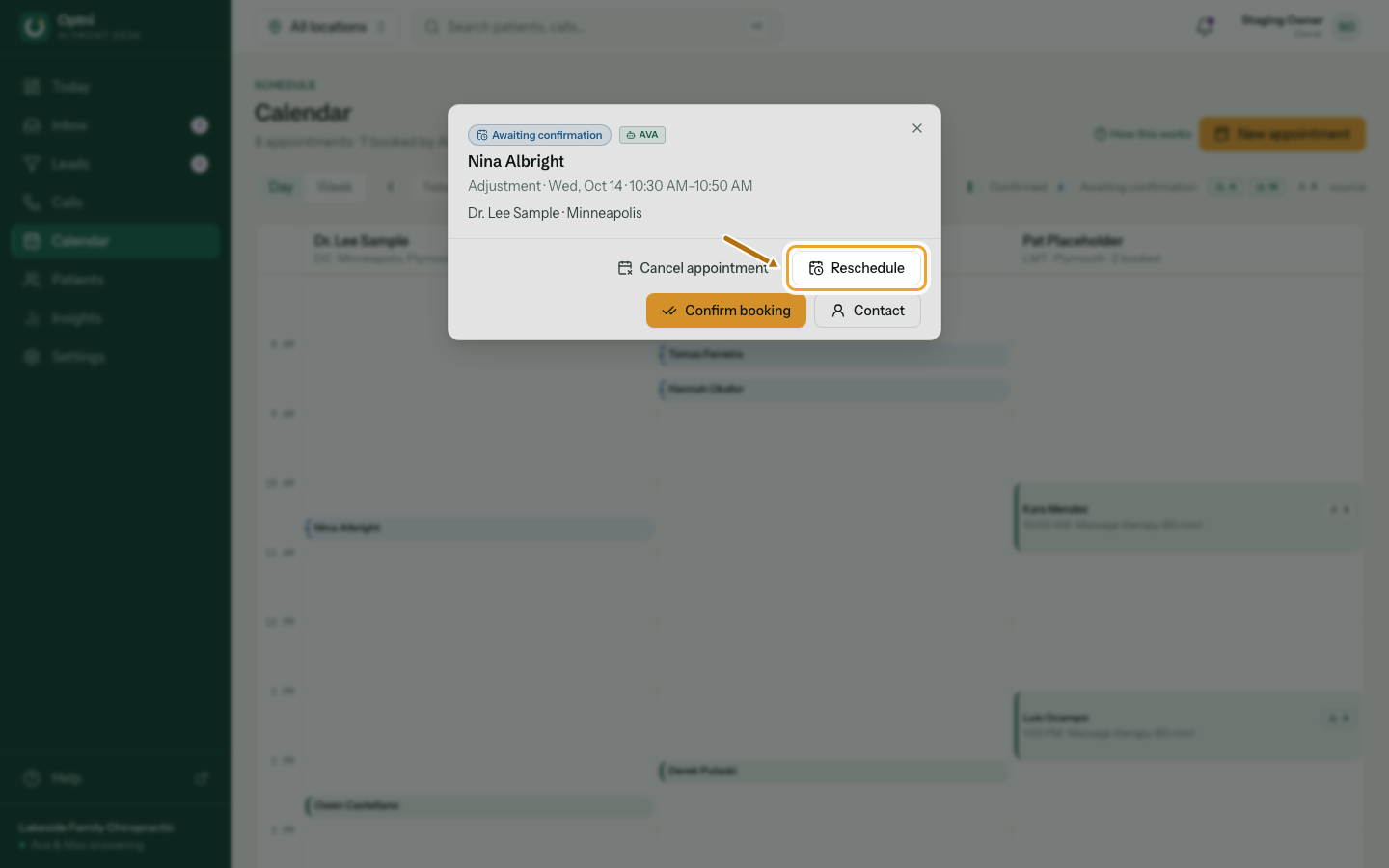
Step 2: To move it, select Reschedule and pick a new time.
Then select Move to … to save. Max texts the customer the new time.
-
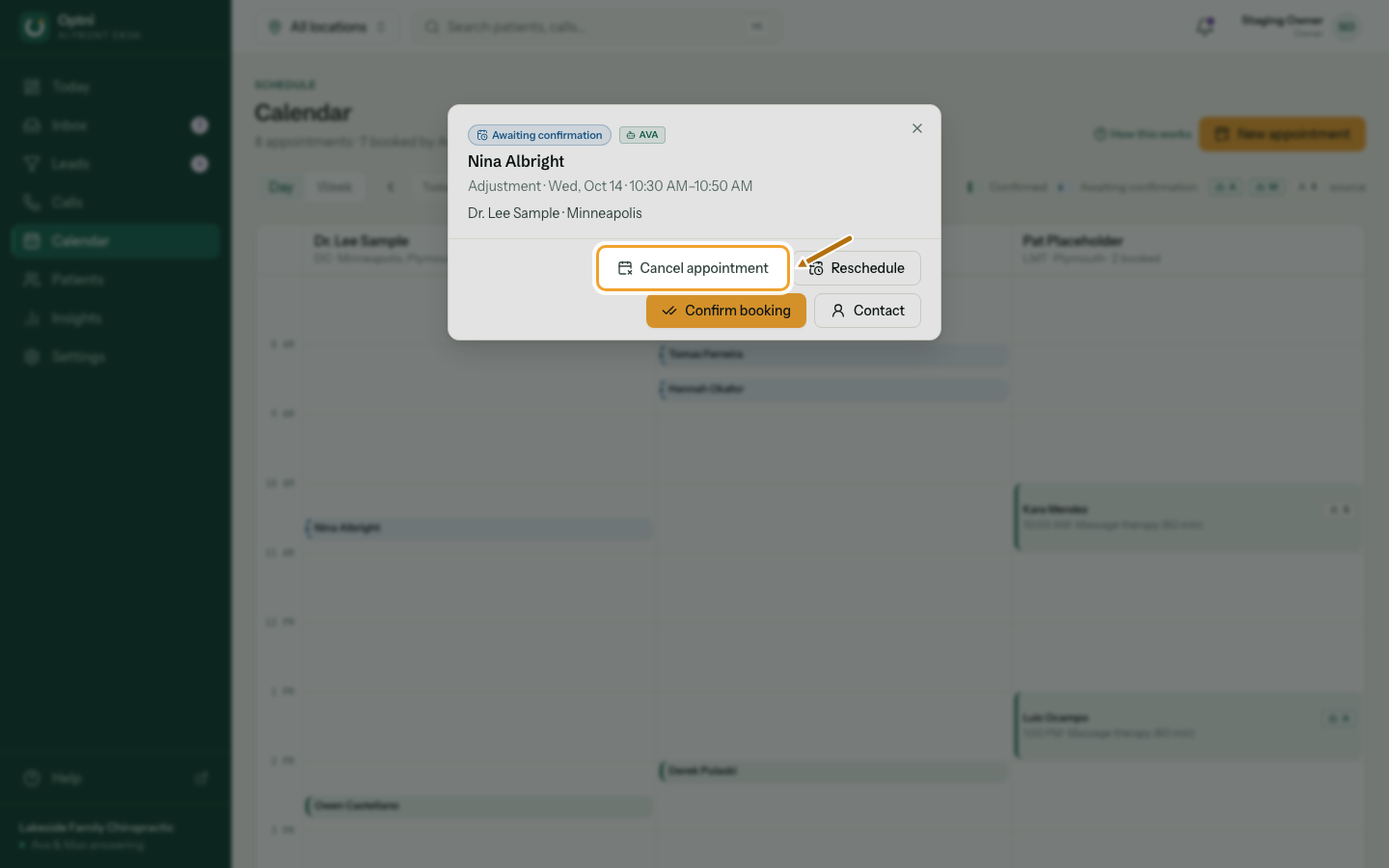
Step 3: To cancel, select Cancel, then Yes, cancel.
The second click is a safety check. Select Keep it if you change your mind.
-
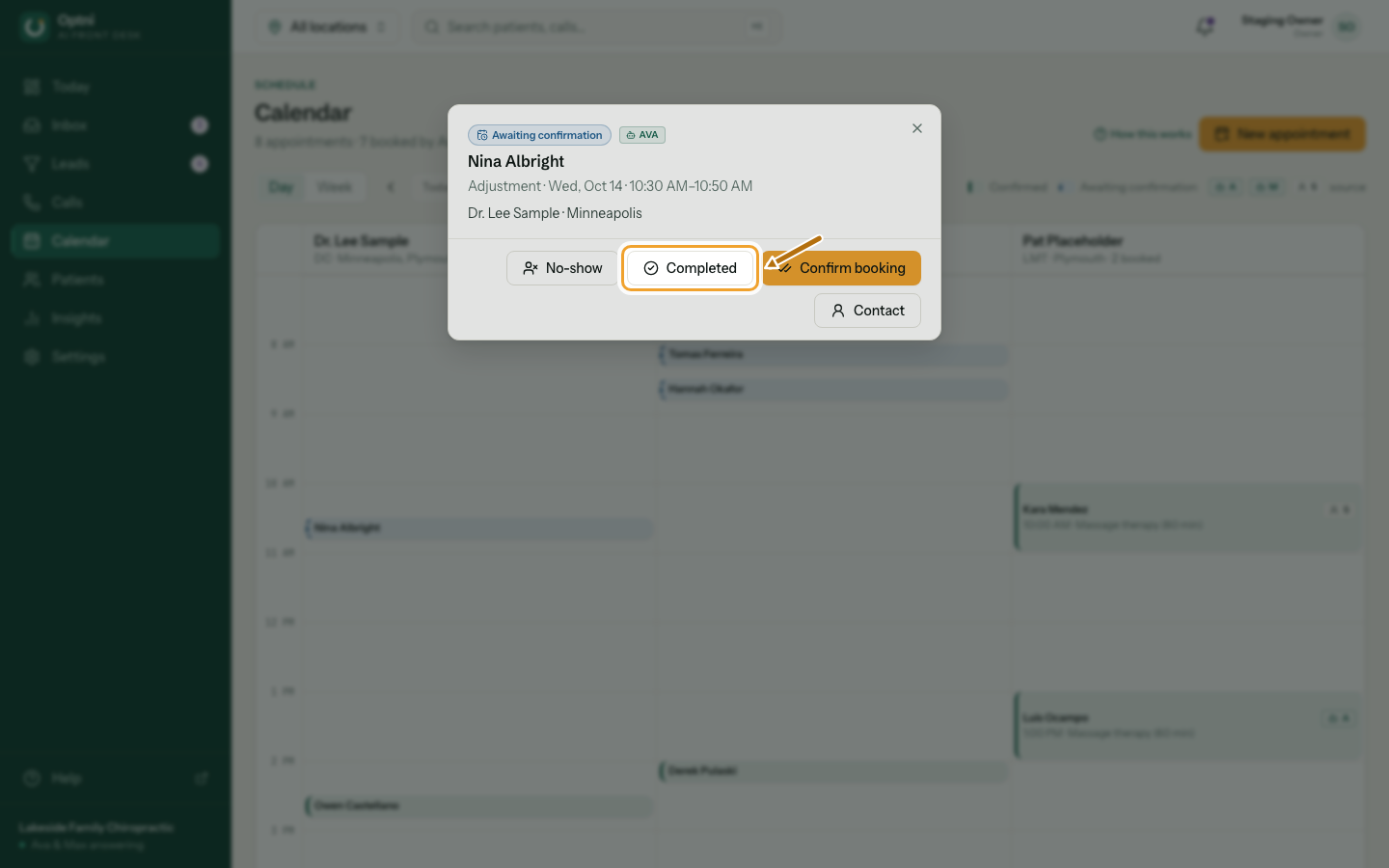
Step 4: After it starts, select Completed or No-show.
Completed can trigger a review request text if the location has a review link.
Statuses
- Awaiting confirmation — booked by the AI, waiting for staff.
- Confirmed — good to go.
- Completed, No-show, Cancelled — finished. These can't be changed.
Bookings from outside calendars
A booking imported from a connected calendar without an Optni booking type can't be moved here. Move it in the calendar it came from.