Calendar and bookings
Calendar: day and week views
The calendar shows bookings made by Ava, Max and your team, side by side for each provider. In your industry, bookings may be called appointments, jobs or demos, and providers may be stylists, technicians or reps.
Steps
-
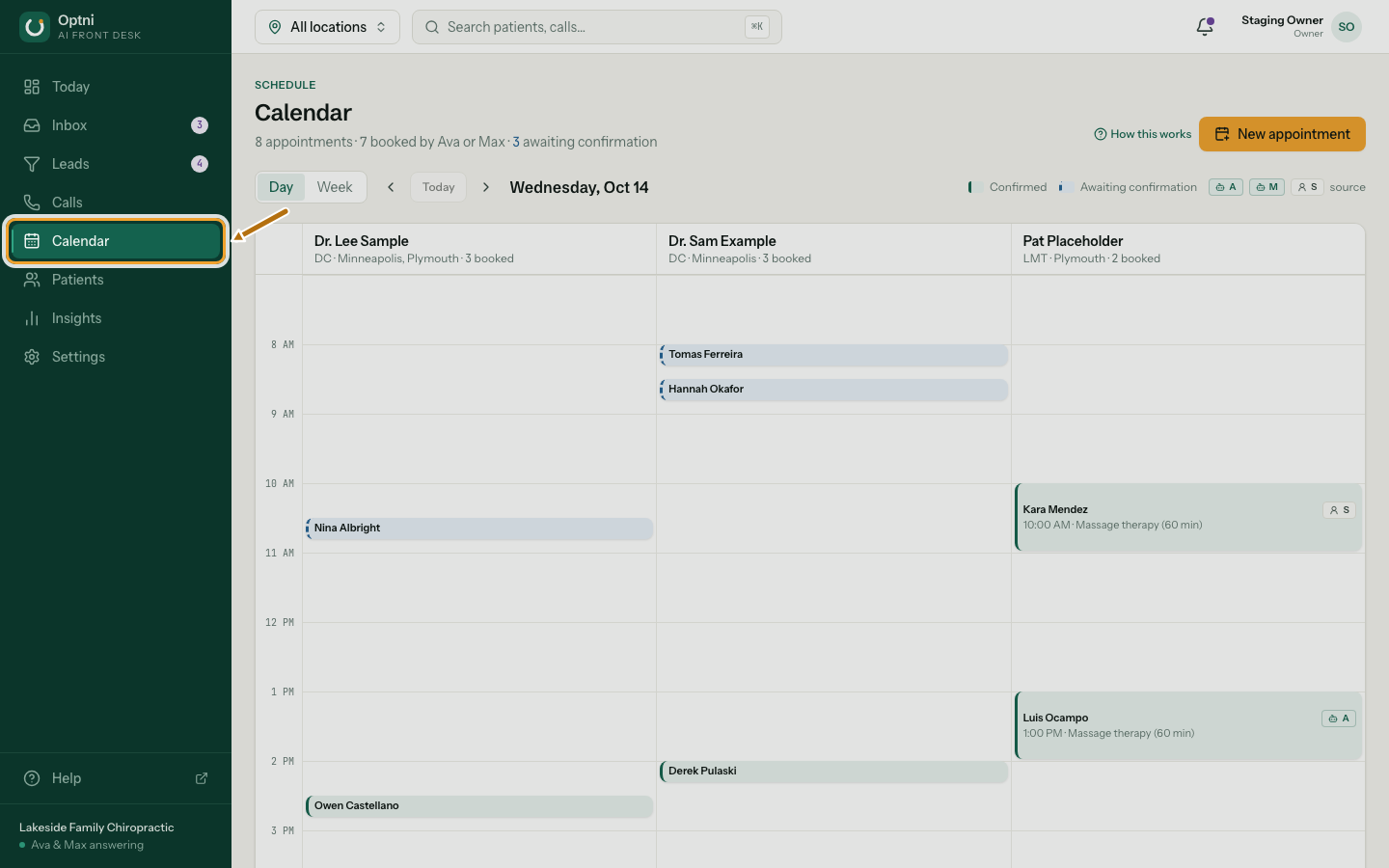
Step 1: Select Calendar in the sidebar.
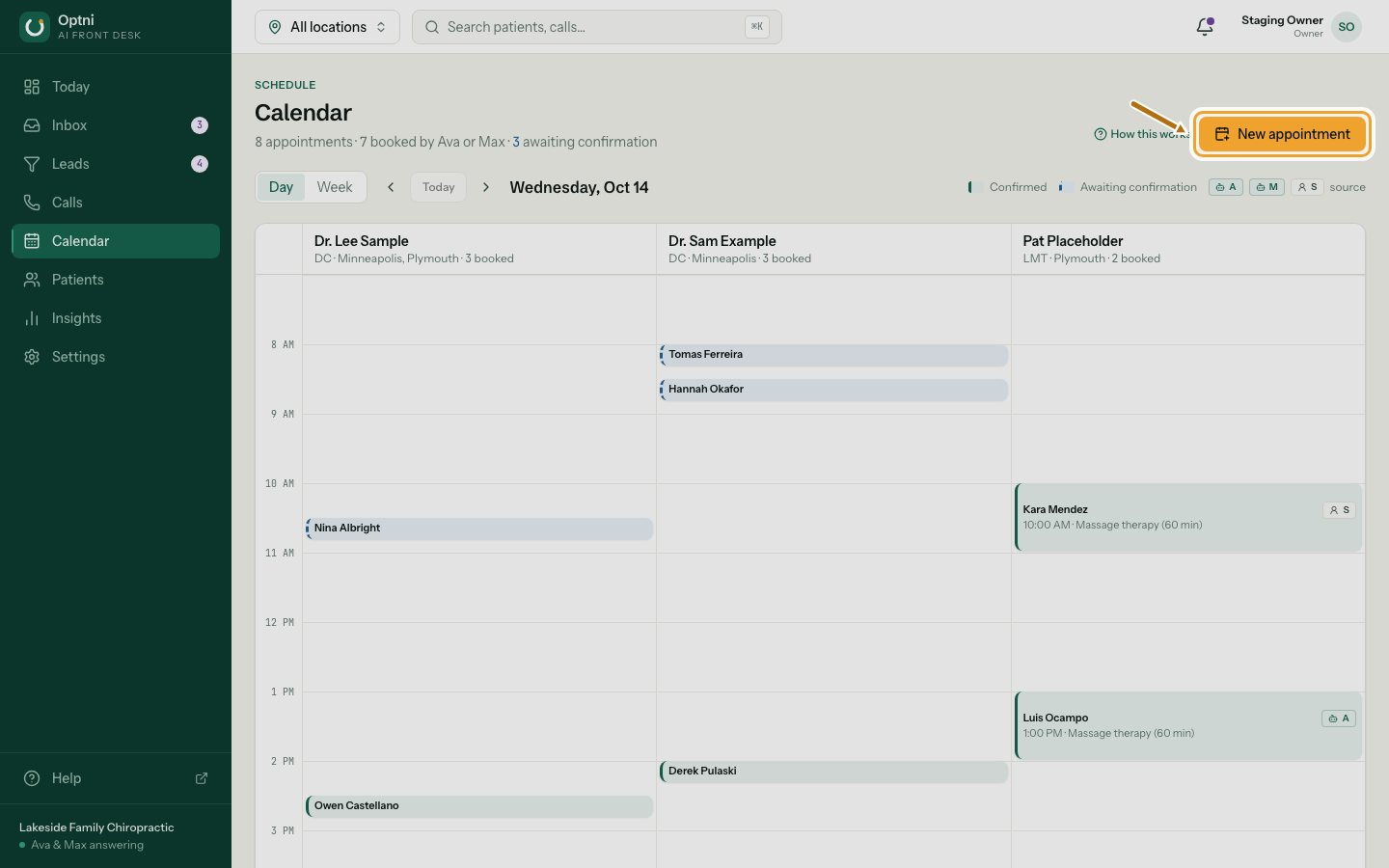
The day view has one column per provider.
-
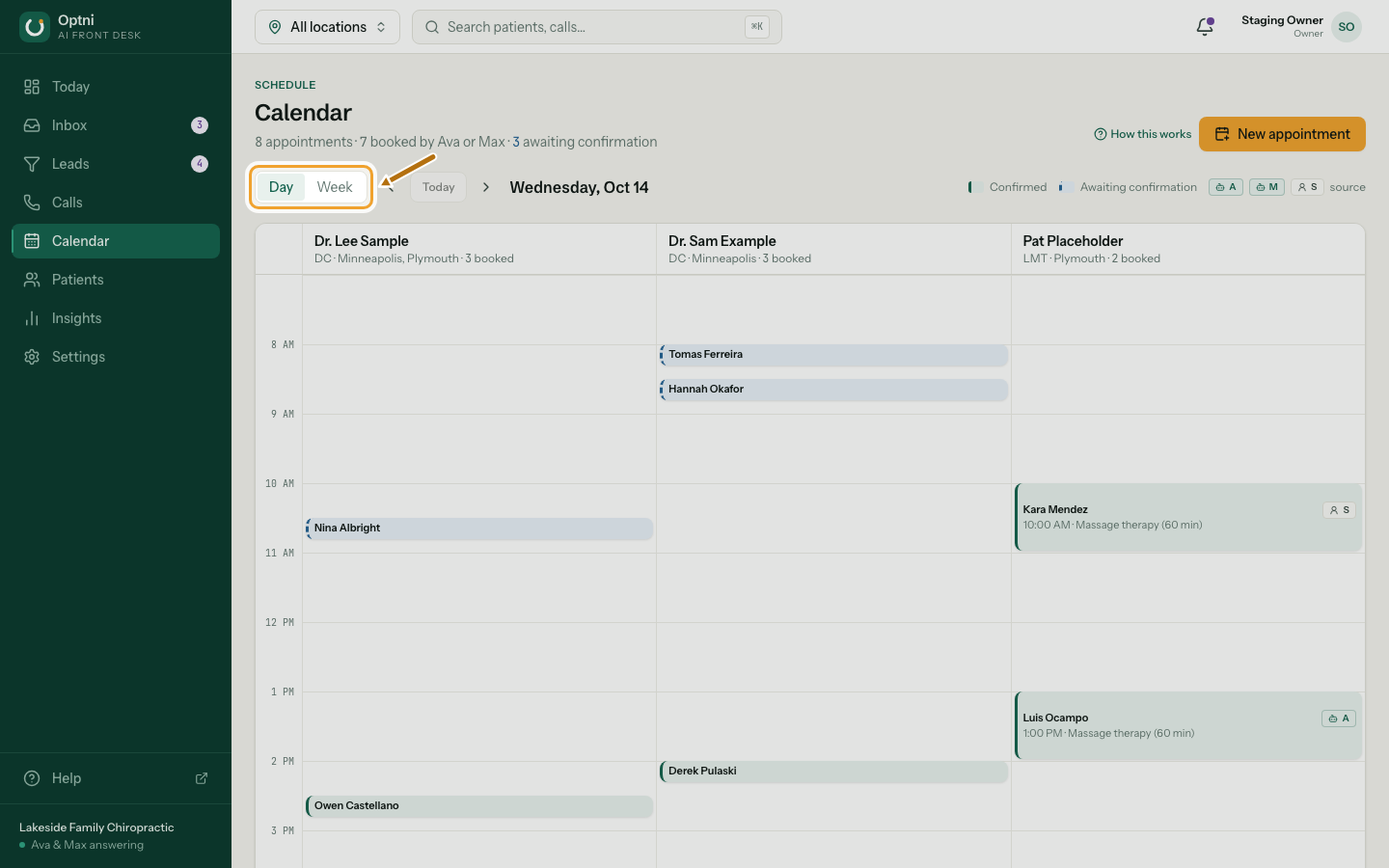
Step 2: Switch between Day and Week.
Use the arrows to move a day or week, and Today to jump back.
-
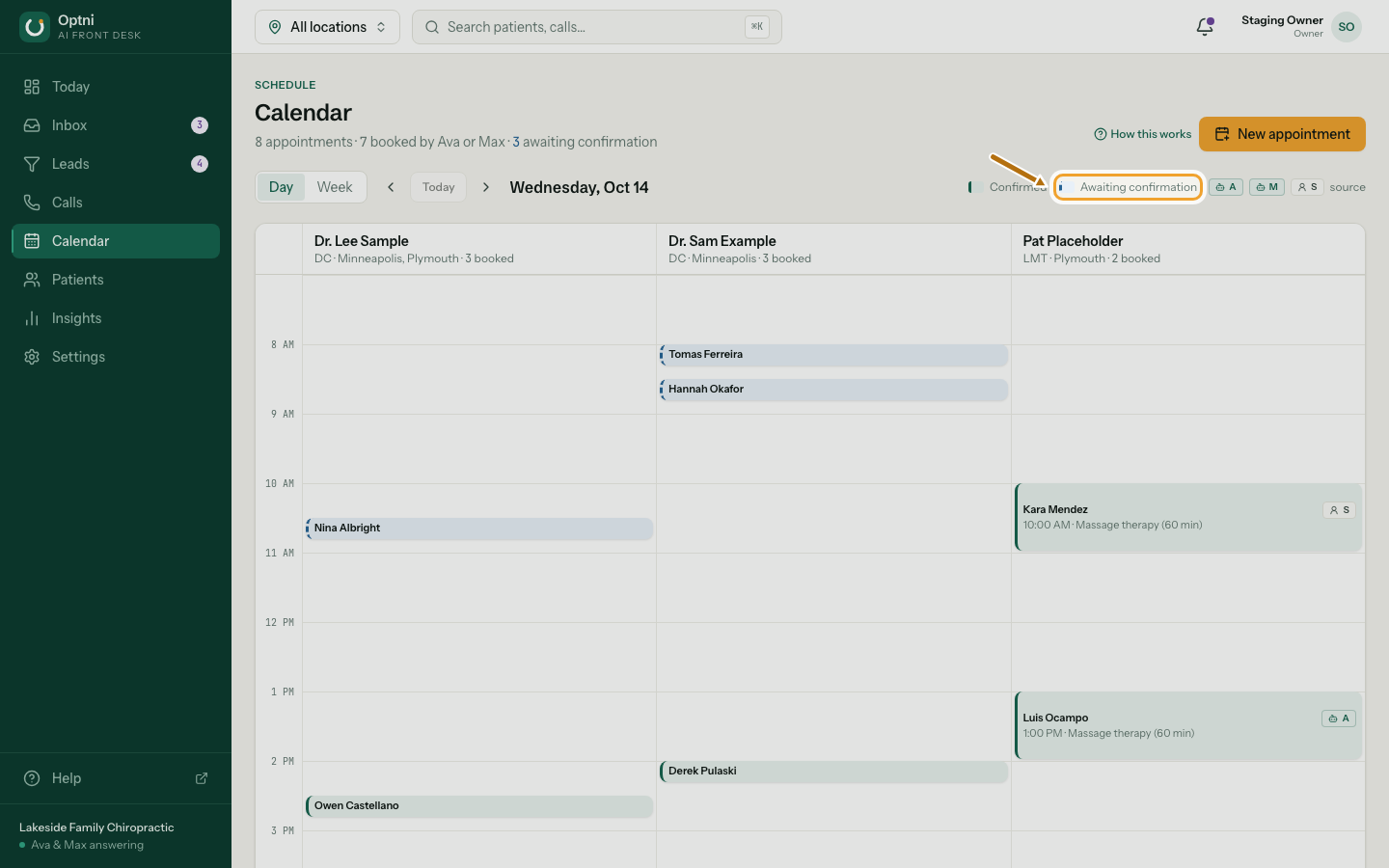
Step 3: Read the colours and badges.
A solid edge is confirmed; a dashed edge is awaiting confirmation. The badge says who booked it: A for Ava, M for Max, S for staff.
-
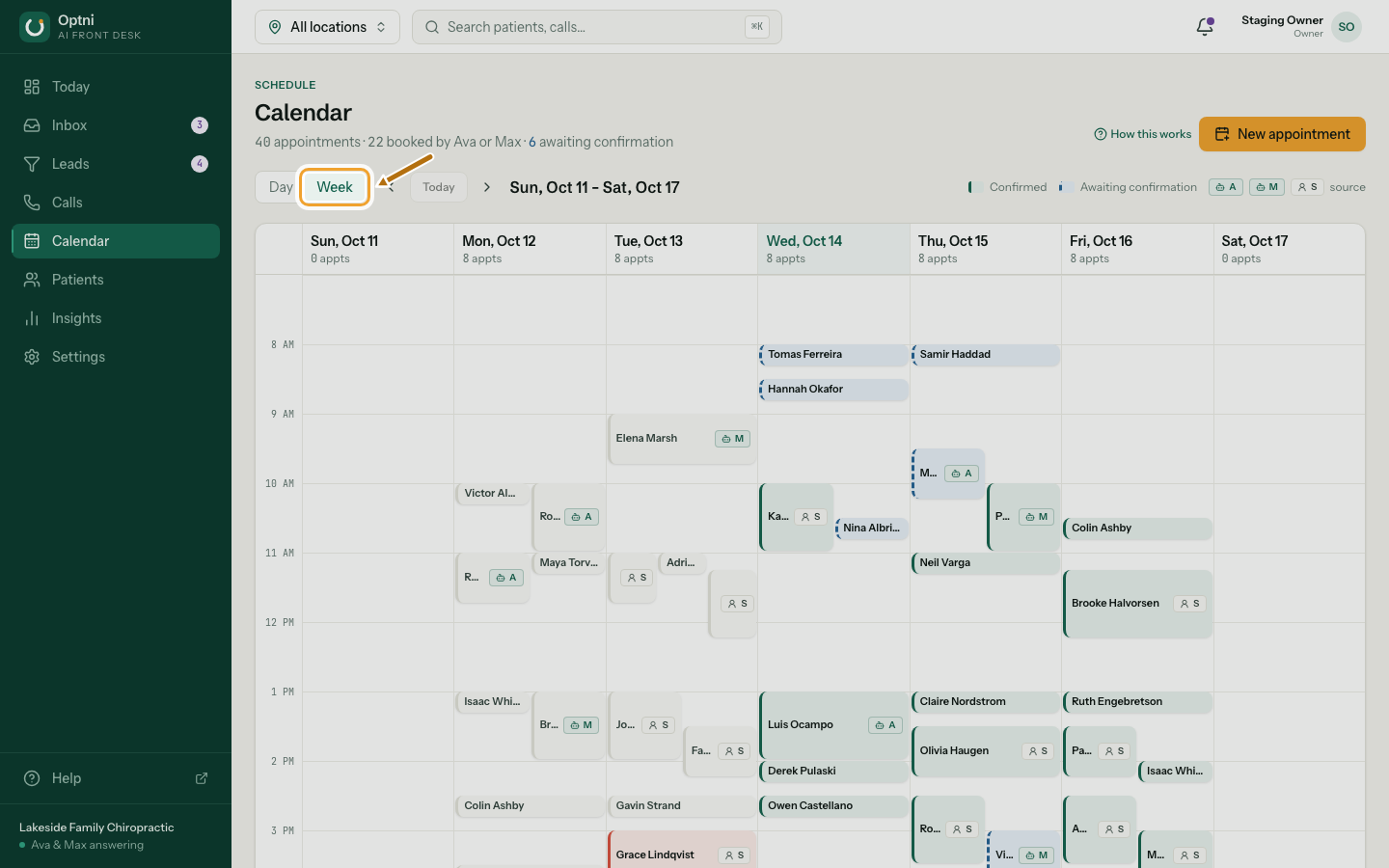
Step 4: Use the week view to see the whole week at once.
-
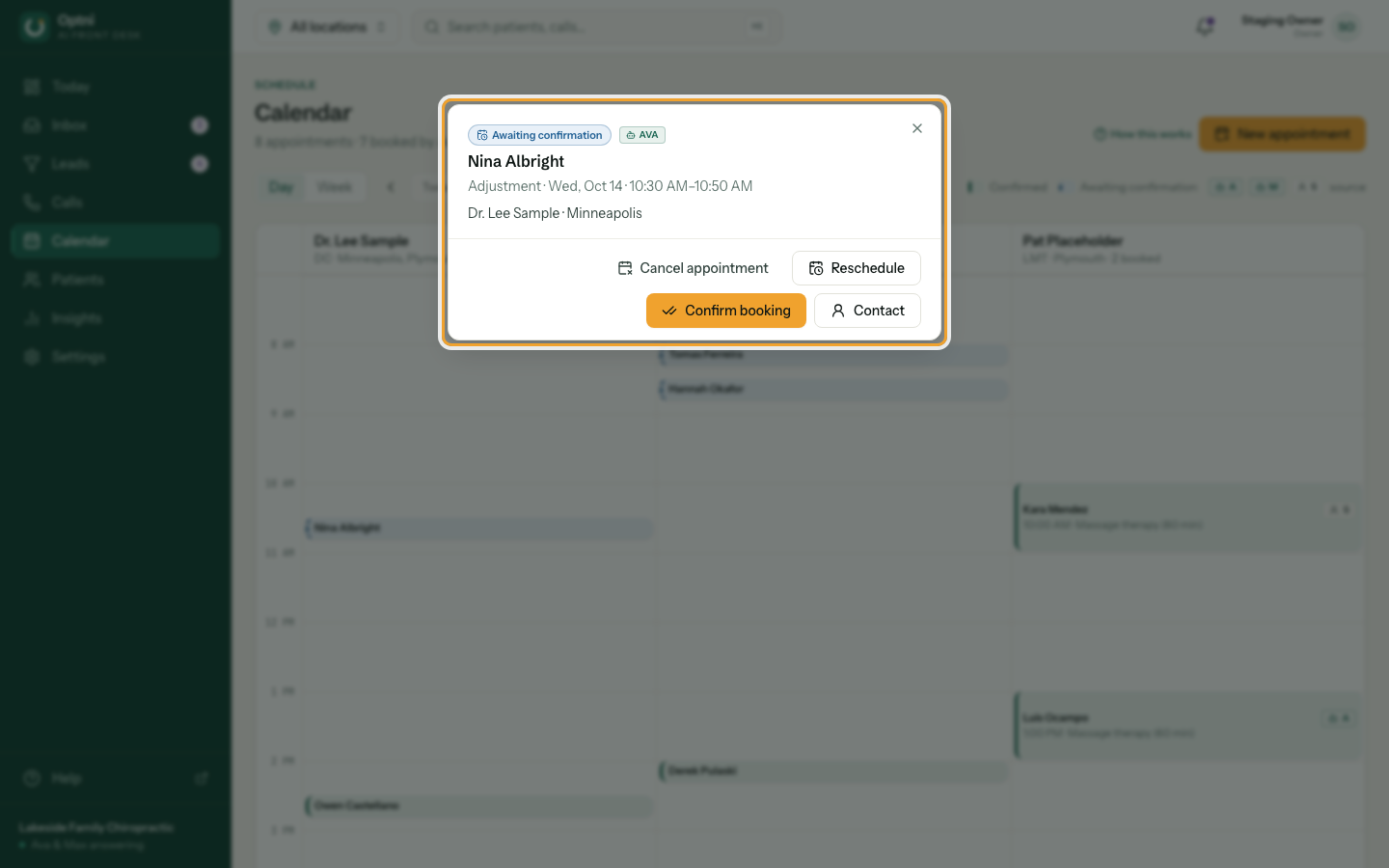
Step 5: Select a booking to open it.
From here you can confirm, reschedule, cancel, or mark it completed or a no-show.
-
Step 6: Select New appointment to book someone yourself.
The button uses your industry's word, for example New job or New demo.
Where bookings come from
- Ava books on calls and Max books by text, using the same live availability you see.
- Bookings the AI makes can wait for staff to confirm. They show on Today under Unconfirmed.
- If a provider's Google Calendar or Open Dental is connected, busy time there is never offered.