Business settings
Connect Google Calendar or Open Dental
Optni has its own calendar and works without any connection. If your team already lives in Google Calendar, or your practice uses Open Dental, connect it: busy time there is never offered, and bookings Ava, Max and staff make are written back.
Steps
-
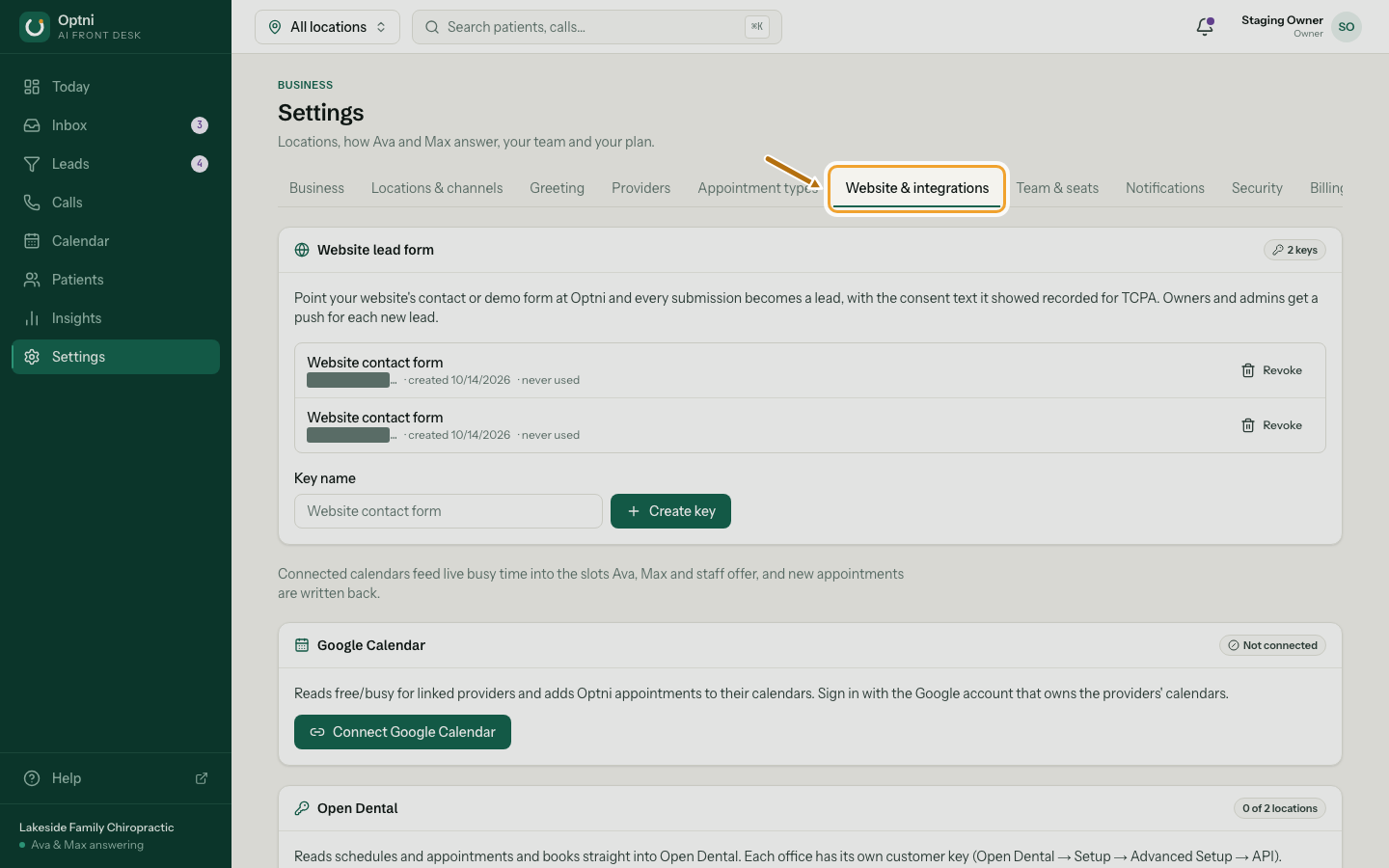
Step 1: Go to Settings → Website & integrations.
-
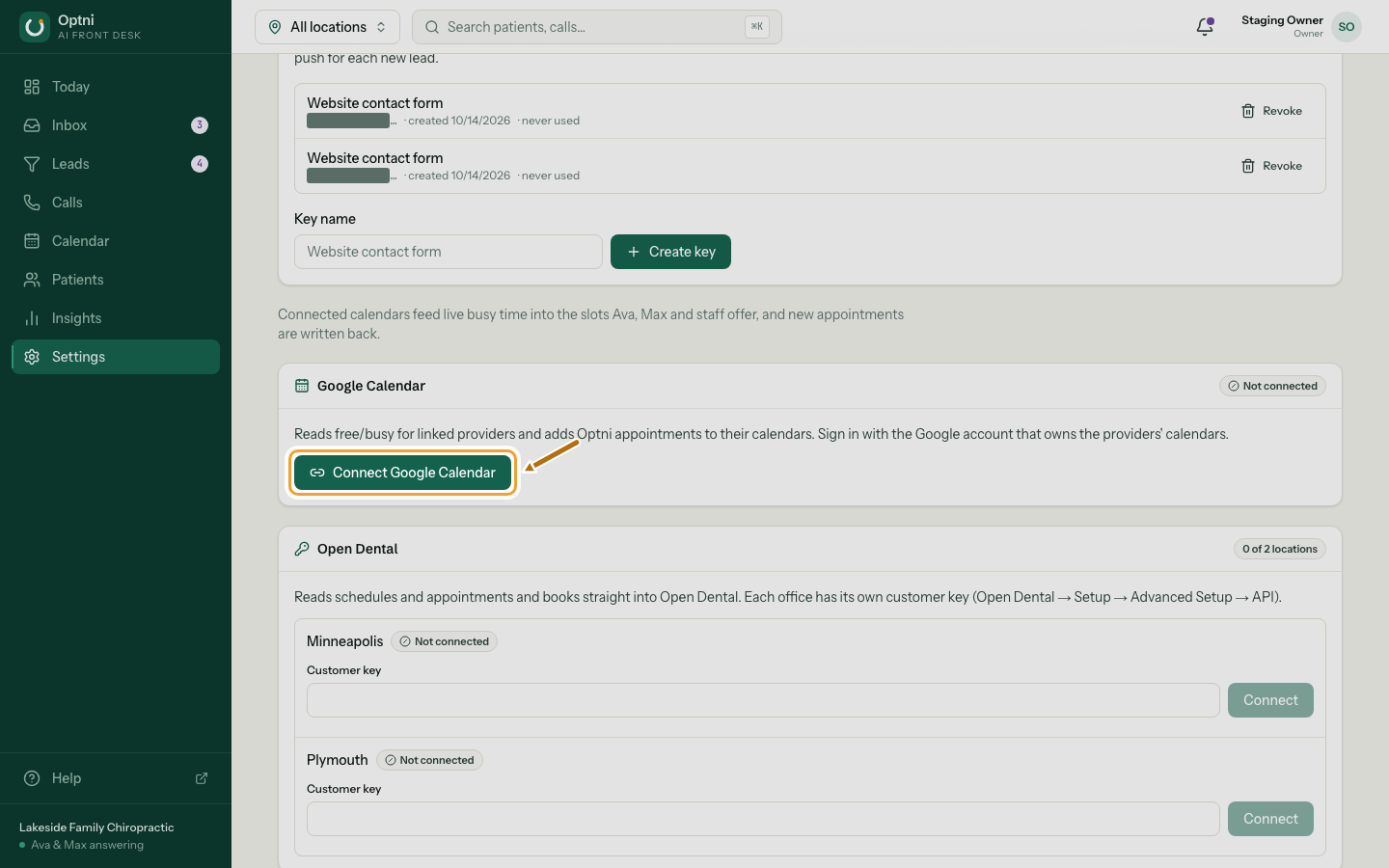
Step 2: Select Connect Google Calendar.
Sign in with the Google account that owns the providers' calendars and allow access. You come back to this page, which says Connected.
-
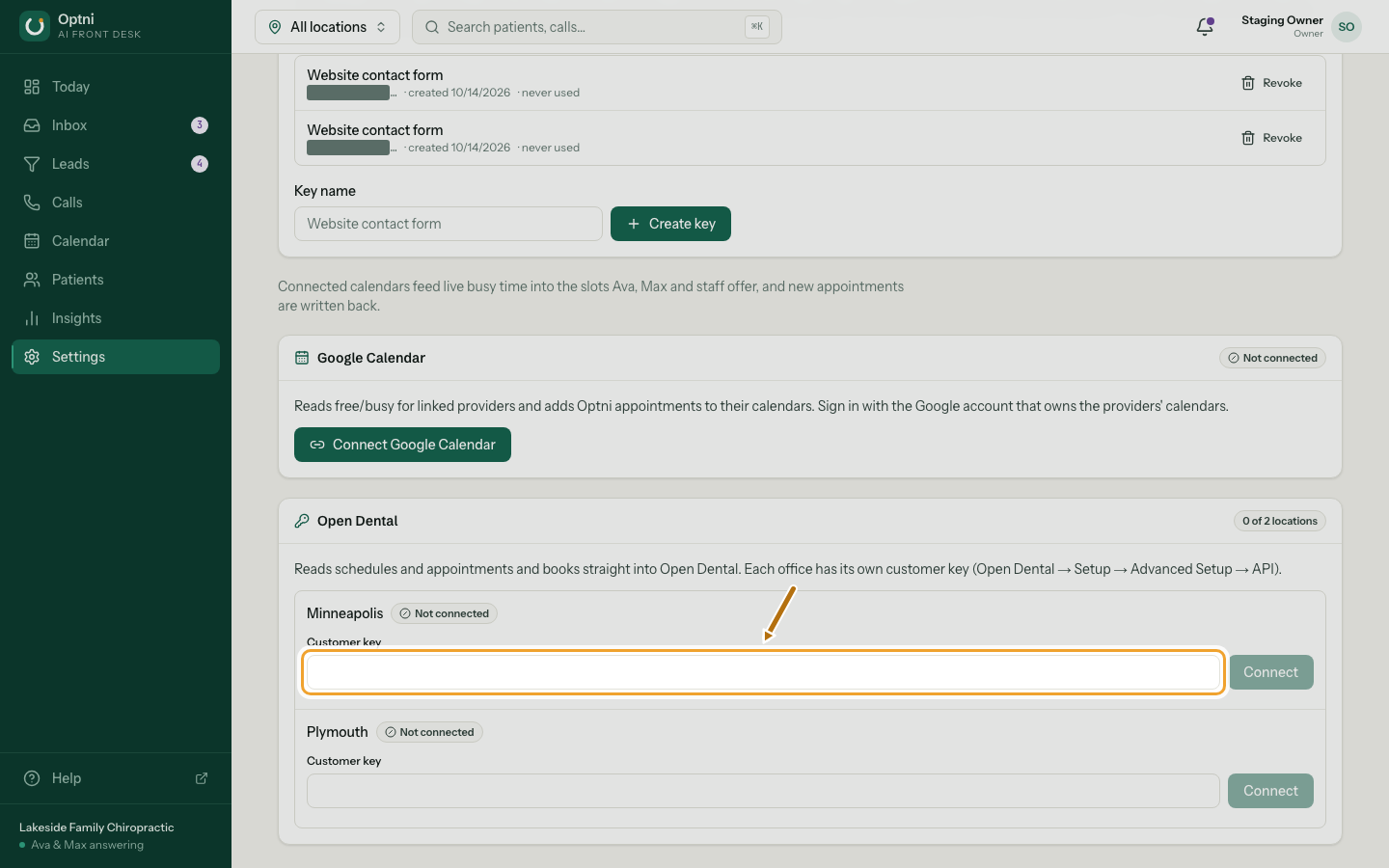
Step 3: For Open Dental, paste each office's customer key and select Connect.
Find the key in Open Dental under Setup → Advanced Setup → API. Each location has its own key.
-
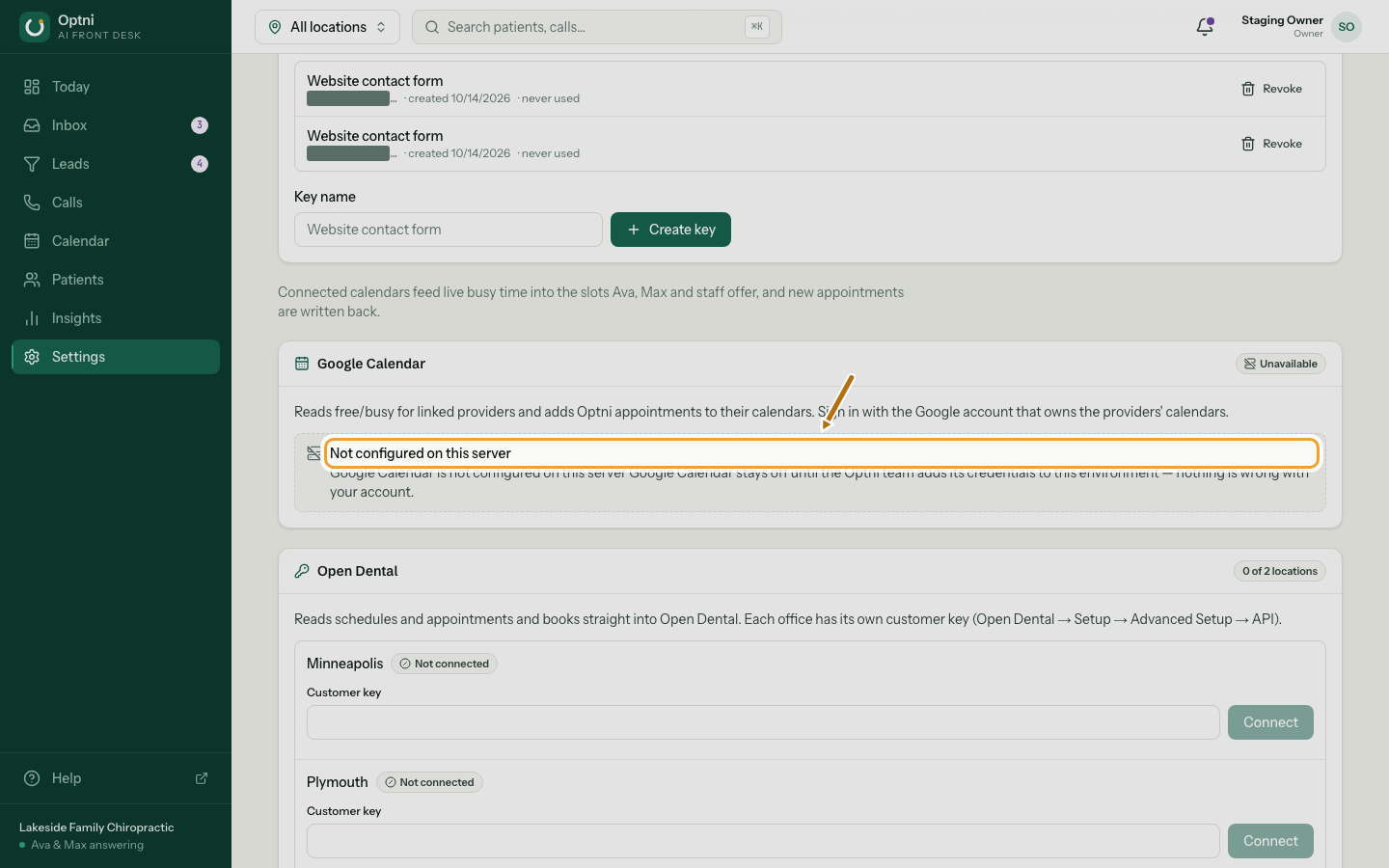
Step 4: If connecting says Not configured on this server, contact Optni.
It means the connection hasn't been switched on for your account yet.
Statuses
- Not connected — nothing linked yet.
- Connected — working. The card shows when it last synced.
- Needs attention — the connection stopped (for example, access was removed in Google). Connect again.
- Unavailable / Not configured on this server — Optni hasn't switched this connection on for your account yet.
Good to know
- Open Dental shows only for healthcare and dental businesses.
- Disconnecting stops syncing. Bookings already in Optni stay.