Getting started
Sign in and set up two-step verification
You sign in with your work email and password. Owners and admins also confirm each sign-in with a 6-digit code from an authenticator app. This keeps your customers' details safe if a password leaks.
Steps
-
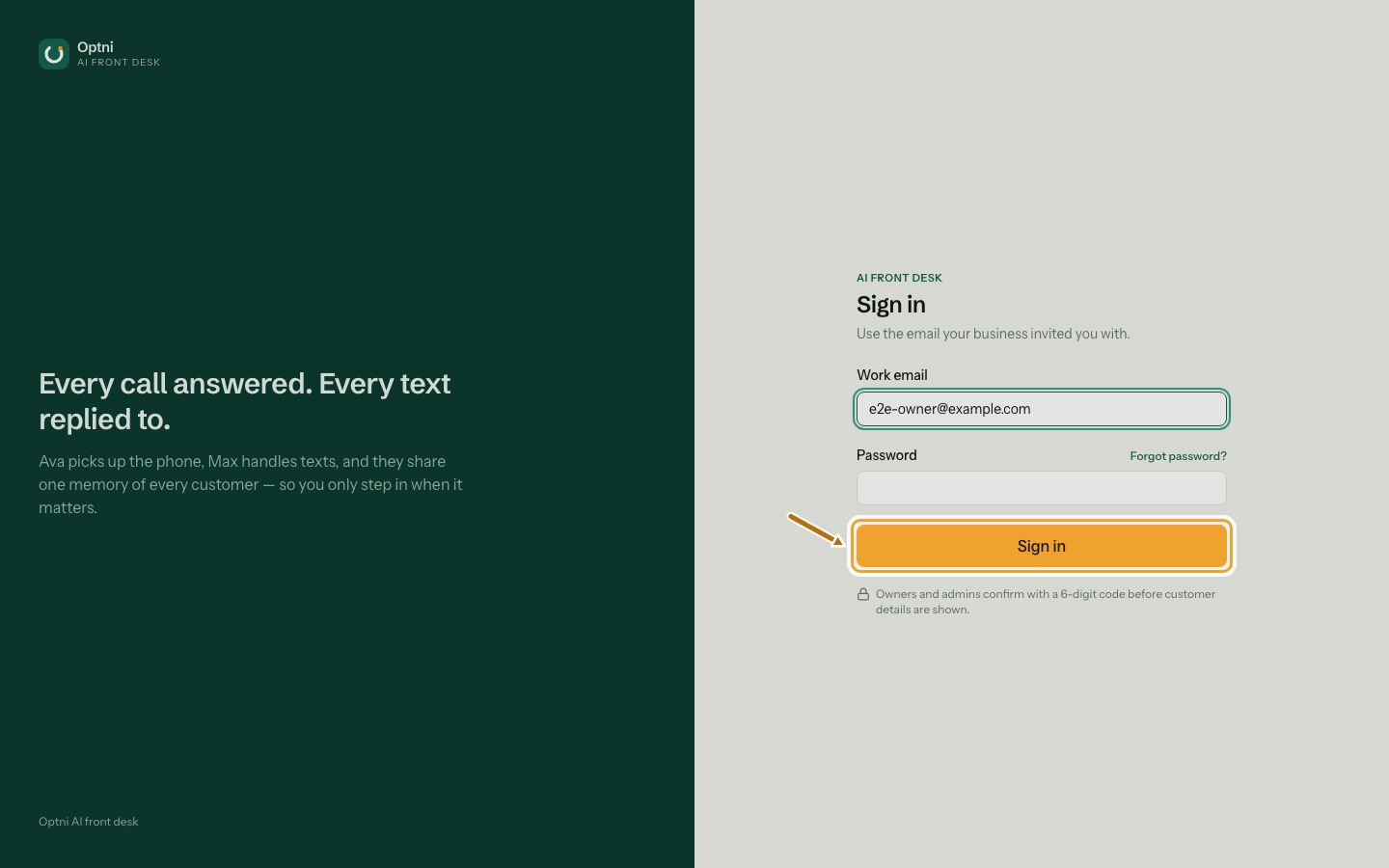
Step 1: Enter your work email and password, then select Sign in.
Use the email your invite was sent to.
-
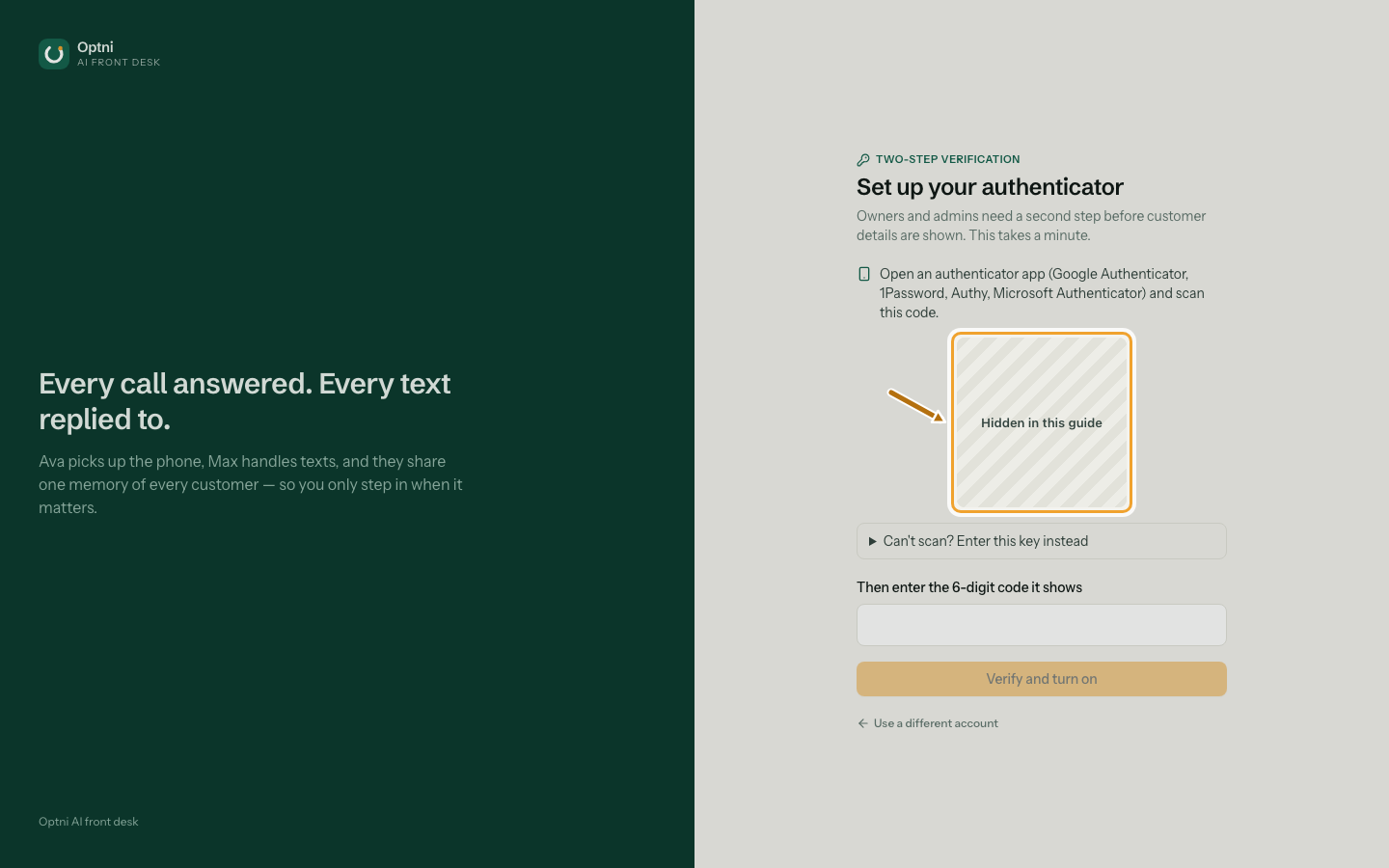
Step 2: The first time, scan the QR code with your authenticator app.
Any authenticator app works: Google Authenticator, Microsoft Authenticator, 1Password or Authy. If you can't scan, select "Can't scan? Enter this key instead" and type the key into the app.
-
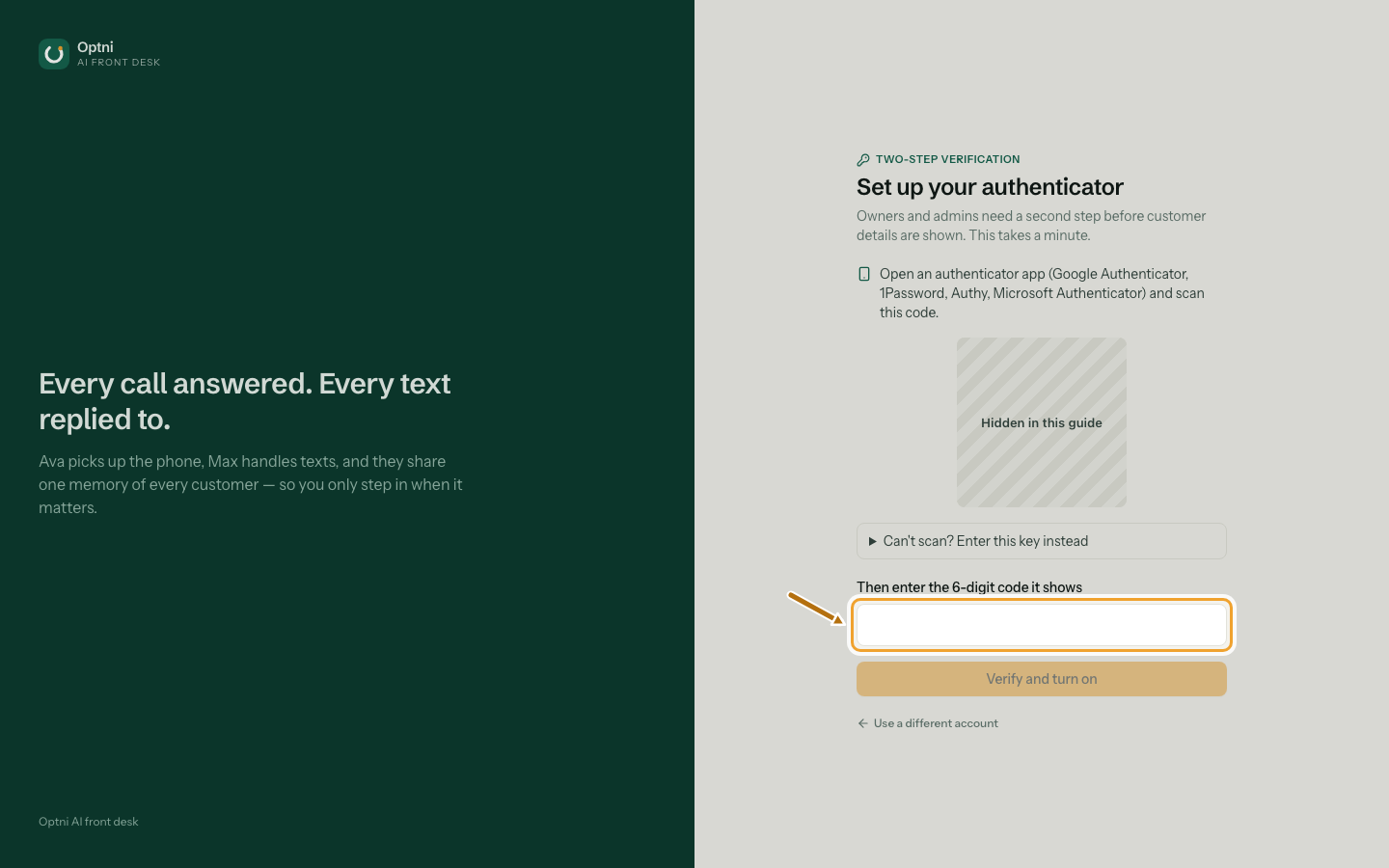
Step 3: Type the 6-digit code the app shows, then select Verify and turn on.
Codes change every 30 seconds. If one fails, wait for the next and try again.
-
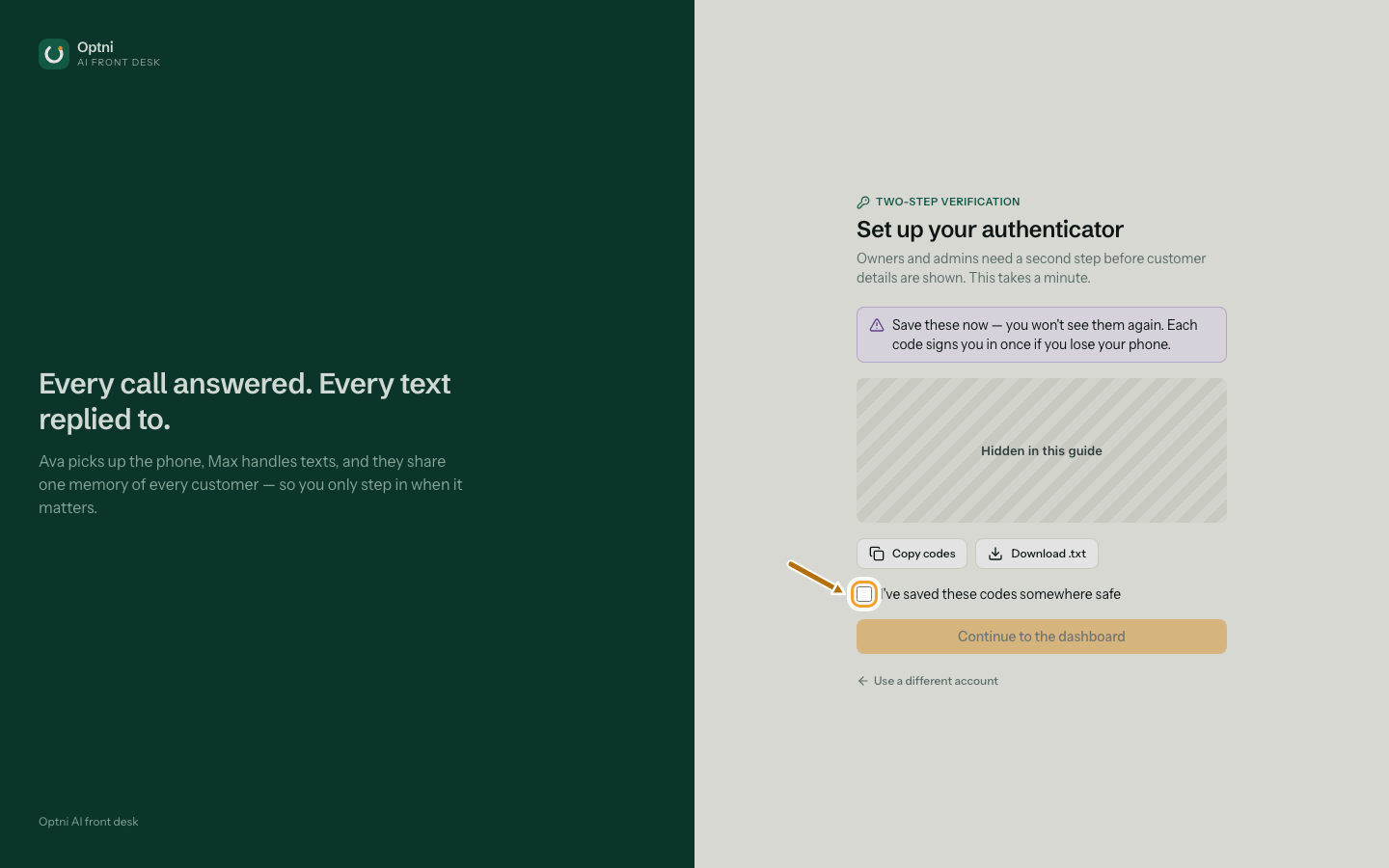
Step 4: Save your 10 recovery codes, tick the box and continue.
Copy or download them and keep them somewhere safe, away from your phone. Each code works once. See Recovery codes for more.
-
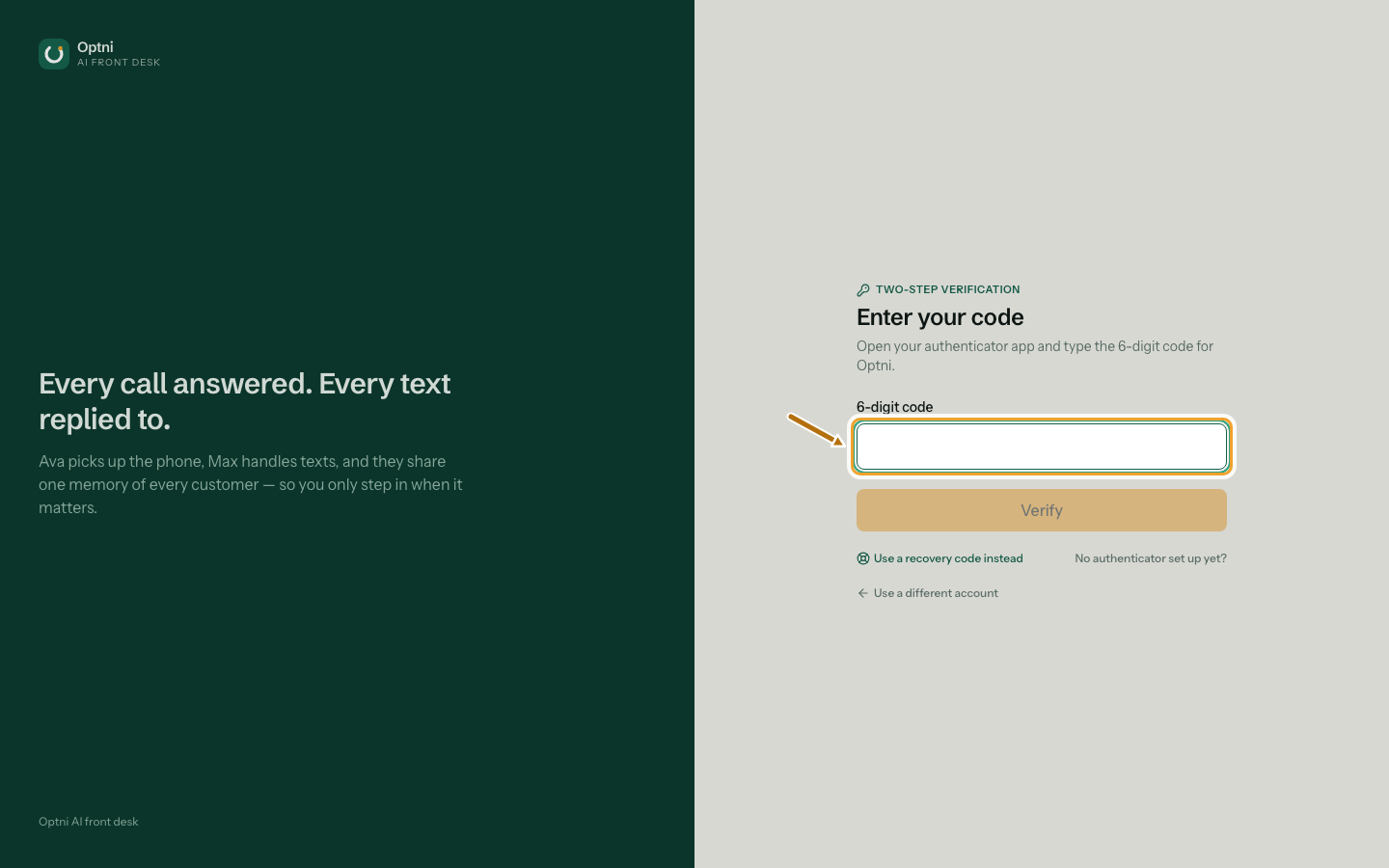
Step 5: Next time, enter the code from your authenticator app after your password.
-
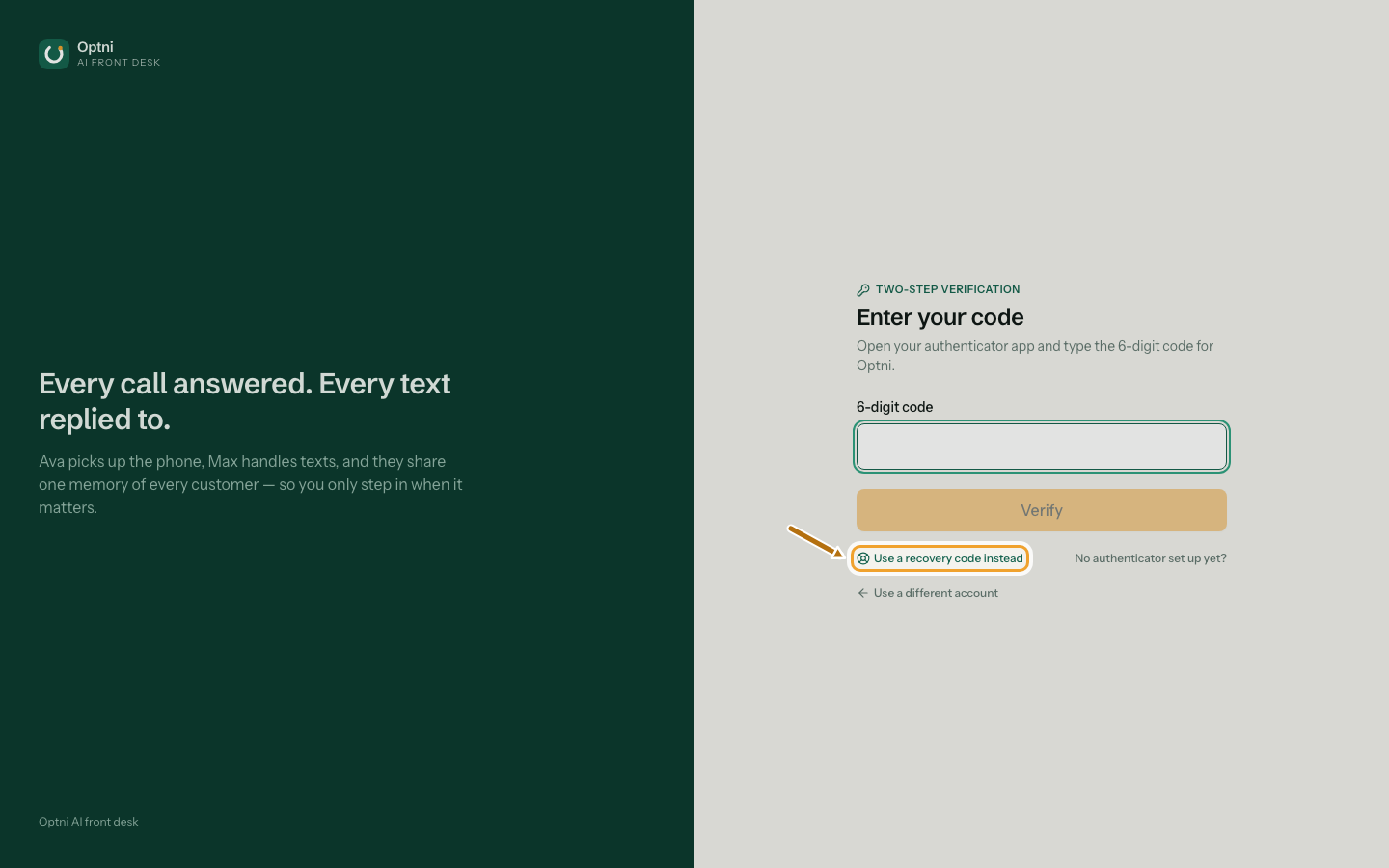
Step 6: No phone? Select Use a recovery code instead.
Type one of your saved codes. Then set up your authenticator again in Settings → Security.
Good to know
- Staff sign in with email and password only. Owners and admins need the code before they can see customer details.
- If the dashboard asks for a code in the middle of your work, enter it. Your session needed a fresh check.
- Signing out (account menu → Sign out) ends the session on the server too, not only in this browser.
- Too many wrong tries pause sign-in for a few minutes.