Team and businesses
Invite your team, roles and seats
Everyone who uses Optni needs their own login. You invite them by email and pick a role. Each person or pending invite uses one seat.
Steps
-
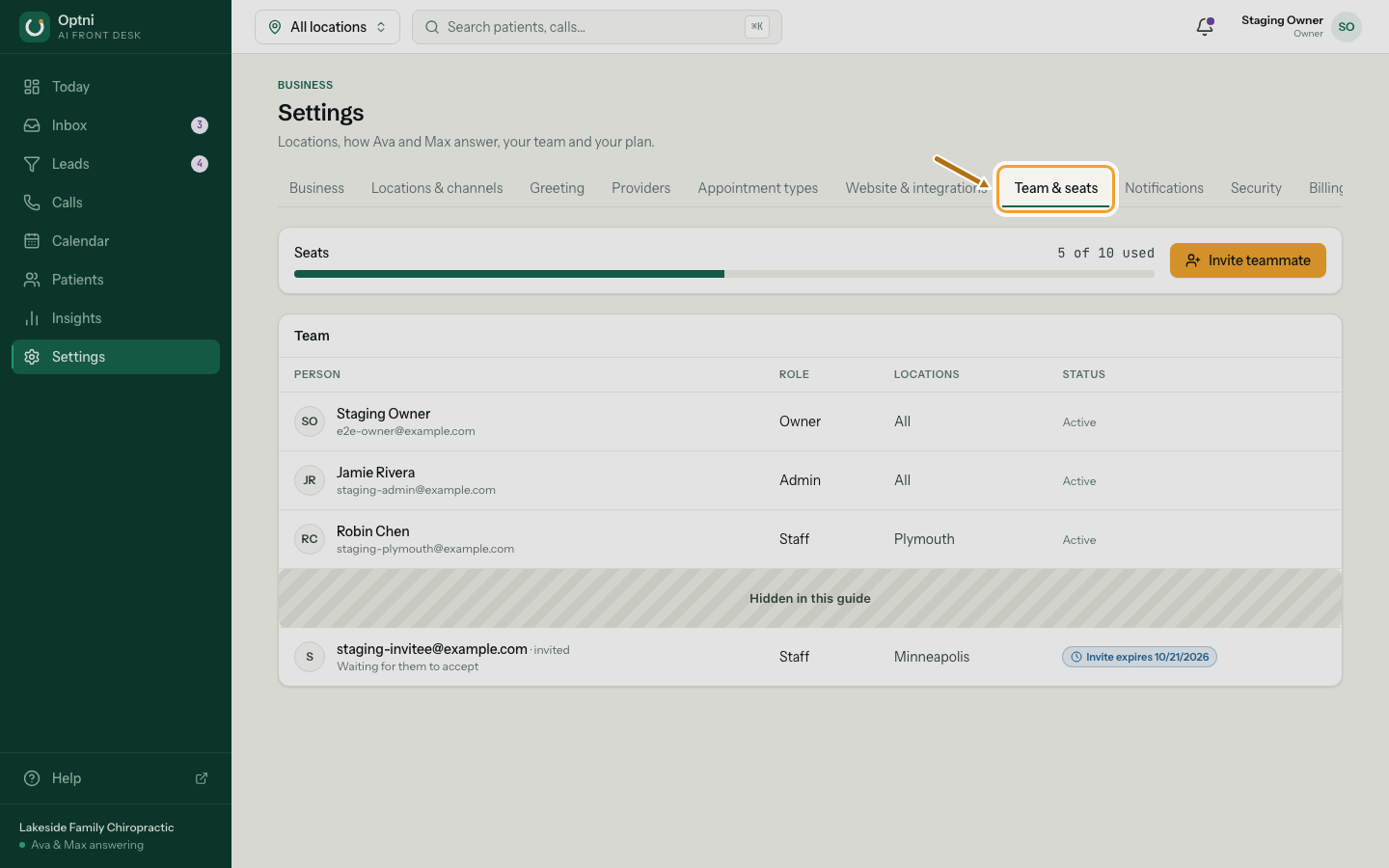
Step 1: Go to Settings → Team & seats.
Or open the account menu (your name, top right) and select Account & team.
-
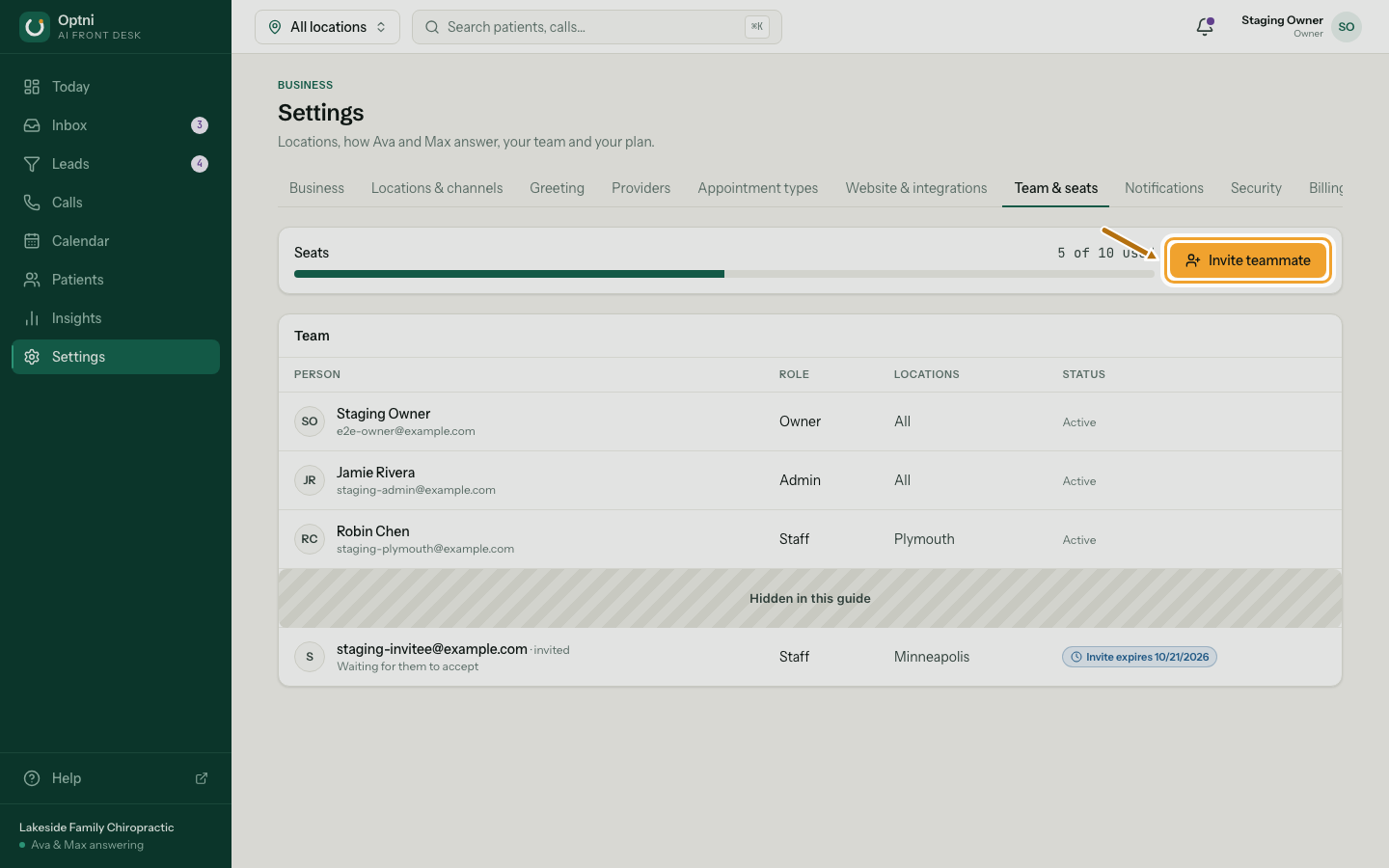
Step 2: Select Invite teammate.
The seat bar shows how many seats are used and how many your plan has.
-
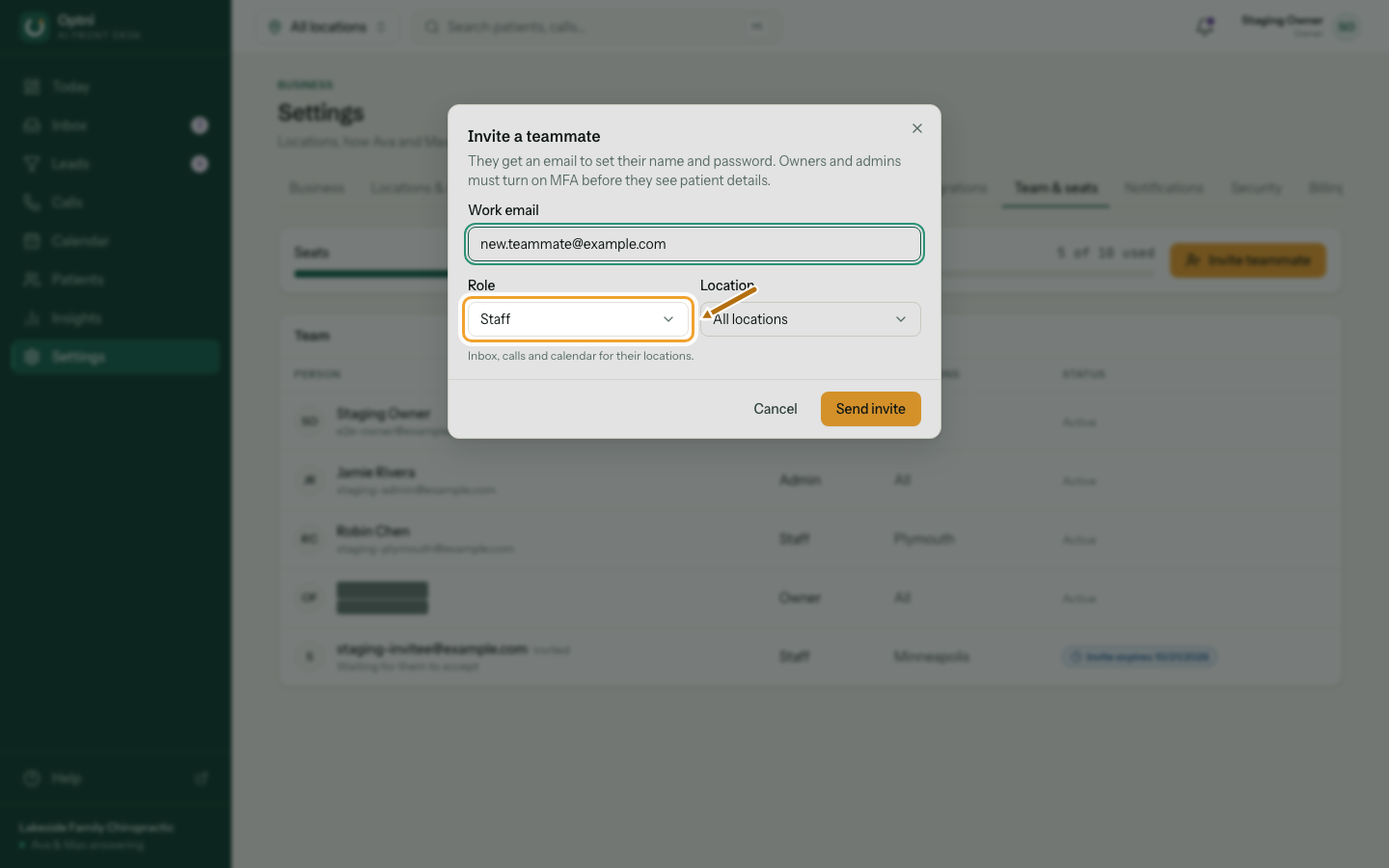
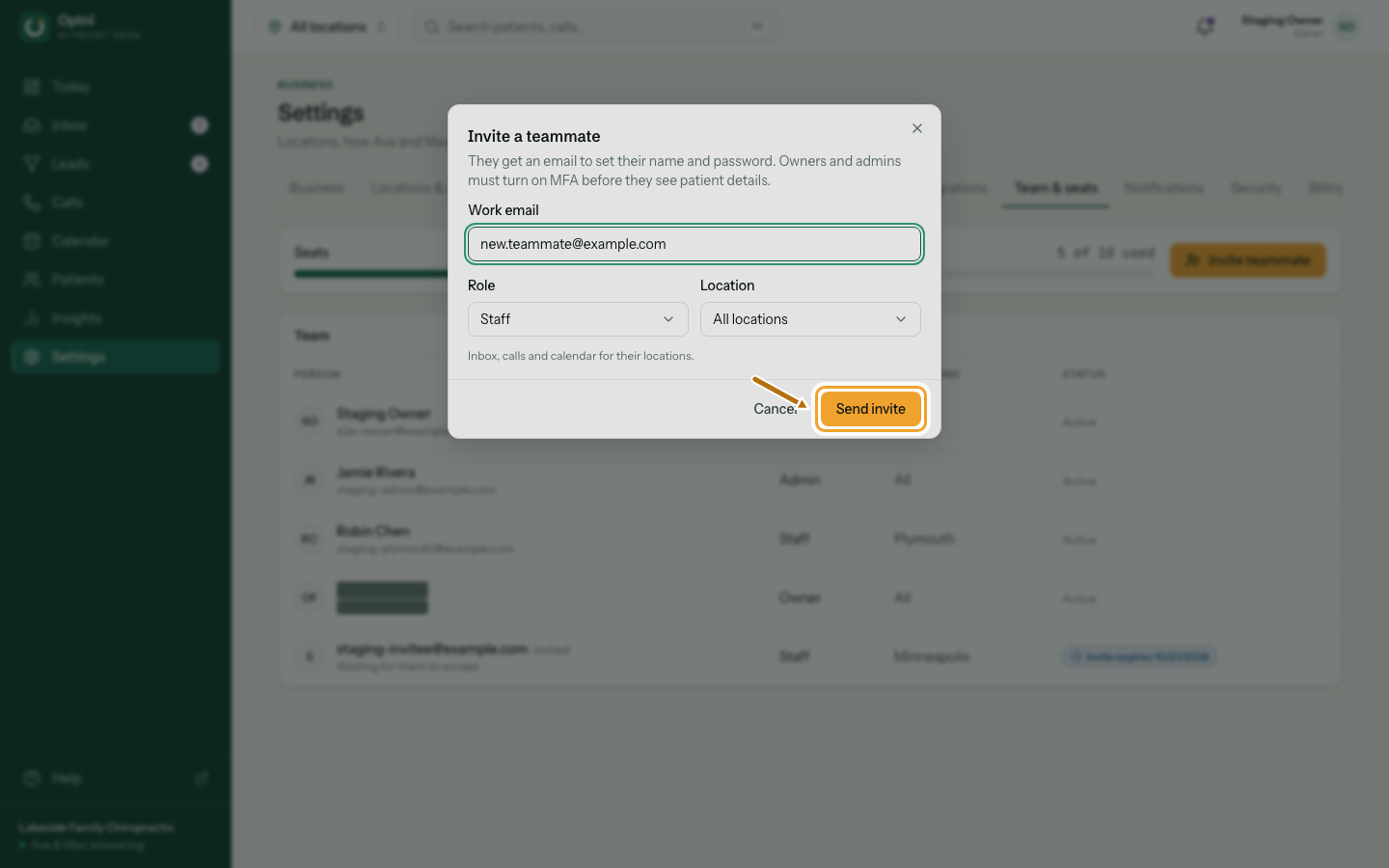
Step 3: Enter their work email and choose a role.
Staff fit most front-desk people. Choose admin only for people who manage settings and the team.
-
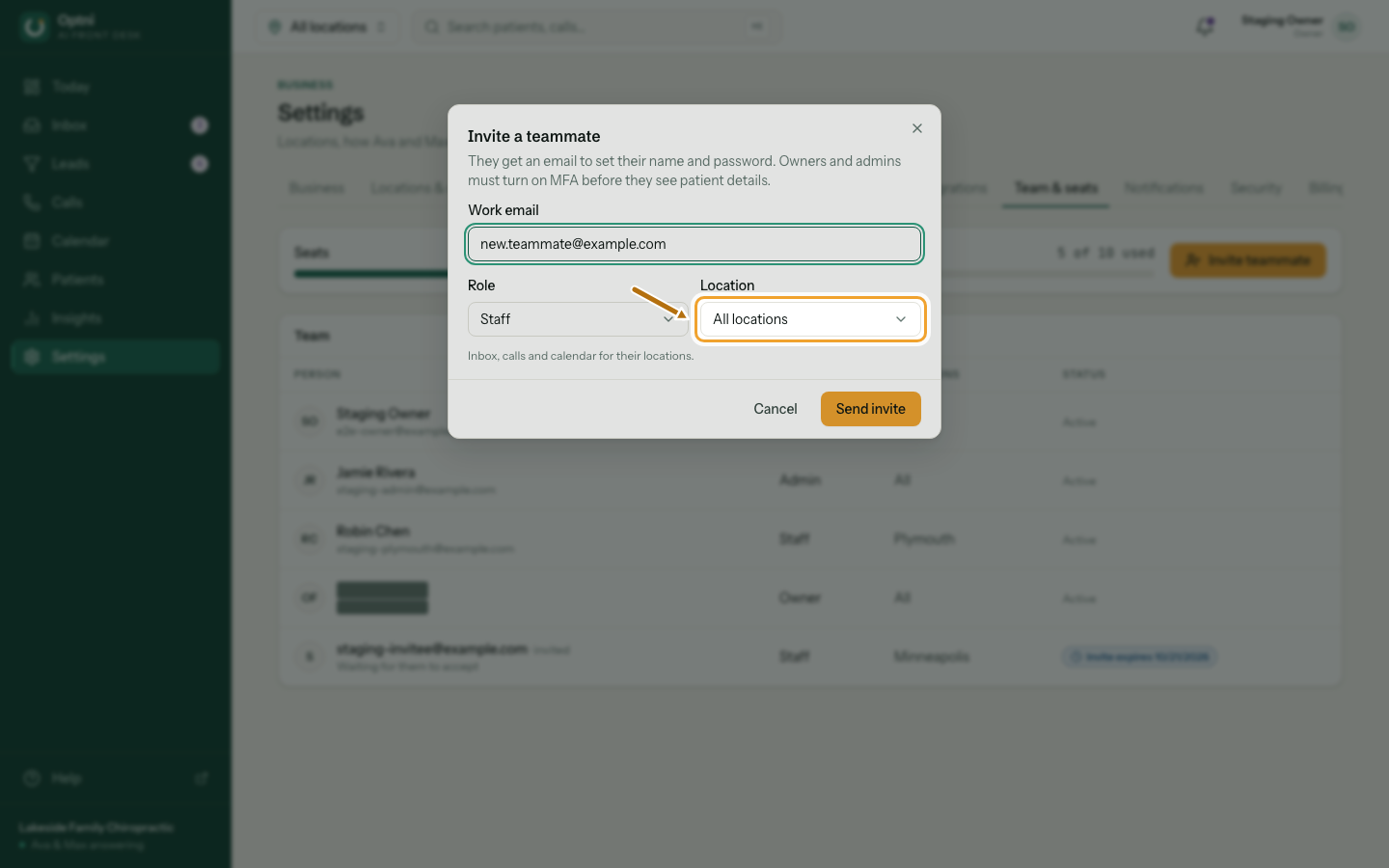
Step 4: Pick the location they work at.
Staff see only that location's inbox, calls and calendar. Choose All locations if they cover every site.
-
Step 5: Send the invite.
They get an email with a link. The invite shows as pending until they accept, and it expires after a week.
Roles
- Owner — everything, including billing and the business's name and industry. Two-step verification required.
- Admin — settings, the team and every conversation. Two-step verification required.
- Staff — inbox, calls and calendar for their locations. Staff can't change settings.
Seats
Each active teammate and each pending invite uses a seat. Starter includes 1 seat, Growth 3 and Pro 10. When you're out of seats, the invite is refused until you free a seat or change plan in Settings → Billing & usage.
When they accept
- The link opens a page where they set their name and a password of at least 12 characters.
- Admins then set up two-step verification and save their recovery codes.
- If the link has expired or was already used, send a new invite.